
Contacts & Data Permissions
Why you need to understand this
Many companies run into this confusion when using an inventory system:
"I gave an employee permission for sales notes — why still can't they see certain customers' sales notes?"
The answer lies in Jenny Software's data permission system — the ownership permission of a contact (customer/supplier) outranks the functional permission of a document. Understanding this mechanism is the key to managing your team's data access correctly.
Core concept: two layers of permission
Permissions in Jenny Software come in two layers, both of which are required:
Layer 1: Functional permission (controlled by roles)
Assigned through role management, this controls which feature modules an employee can use.
For example:
- Whether they can see the "Sales" menu
- Whether they can create purchase notes
- Whether they can delete inbound notes
This is the basic permission layer that most software has, set in People & Role Management.
Layer 2: Data permission (controlled by owner)
Assigned through the owner of a contact, this controls which customers'/suppliers' data an employee can see.
Core rule:
Important
A contact's information and its associated contact people can only be seen by the employees designated as its owner.
This means:
- Employee A is the owner of "Hangzhou Jinxiu Textile" → Employee A can see all of that customer's sales notes, receipt records, and money flows
- Employee B is not the owner of that customer → even if Employee B has the "sales note" functional permission, they cannot see any of "Hangzhou Jinxiu Textile"'s sales notes
How the layers stack
Can an employee view a given customer's sales notes?
  ↓
Layer 1: Does the employee's role have "sales note" permission?
  ├── No → ❌ Cannot view (can't even see the menu)
  └── Yes → continue ↓

Layer 2: Is the employee the "owner" of this customer?
  ├── No → ❌ Cannot view (has the menu but sees no data)
  └── Yes → ✅ Can view
In short: functional permission decides "whether you can use this feature," and data permission decides "which data you can see."
The contact owner mechanism
What is an owner?
Every contact (customer, supplier, processor, etc.) can be assigned one or more owners. An owner is the employee who actually follows up on that customer's/supplier's business.
How to set an owner
- Open the contact's detail page
- Find the "Owner" field on the info card
- Select one or more employees
- Save
When the owner is changed, the system automatically notifies the employees added and removed.
What can an owner do?
| Action | Owner | Non-owner |
|---|---|---|
| View basic contact info | ✅ | ❌ |
| Edit contact info | ✅ (requires role permission) | ❌ |
| View associated contact people | ✅ | ❌ |
| View associated sales / purchase notes | ✅ | ❌ |
| View associated receipt / payment records | ✅ | ❌ |
| View associated money flows | ✅ | ❌ |
| Quick-create a document from the detail page | ✅ | ❌ |
Special cases
- The company creator (owner account) has view access to all data by default, not limited by the owner setting
- The admin role can bypass the owner restriction via the "Participate in all contacts" permission
Customer list
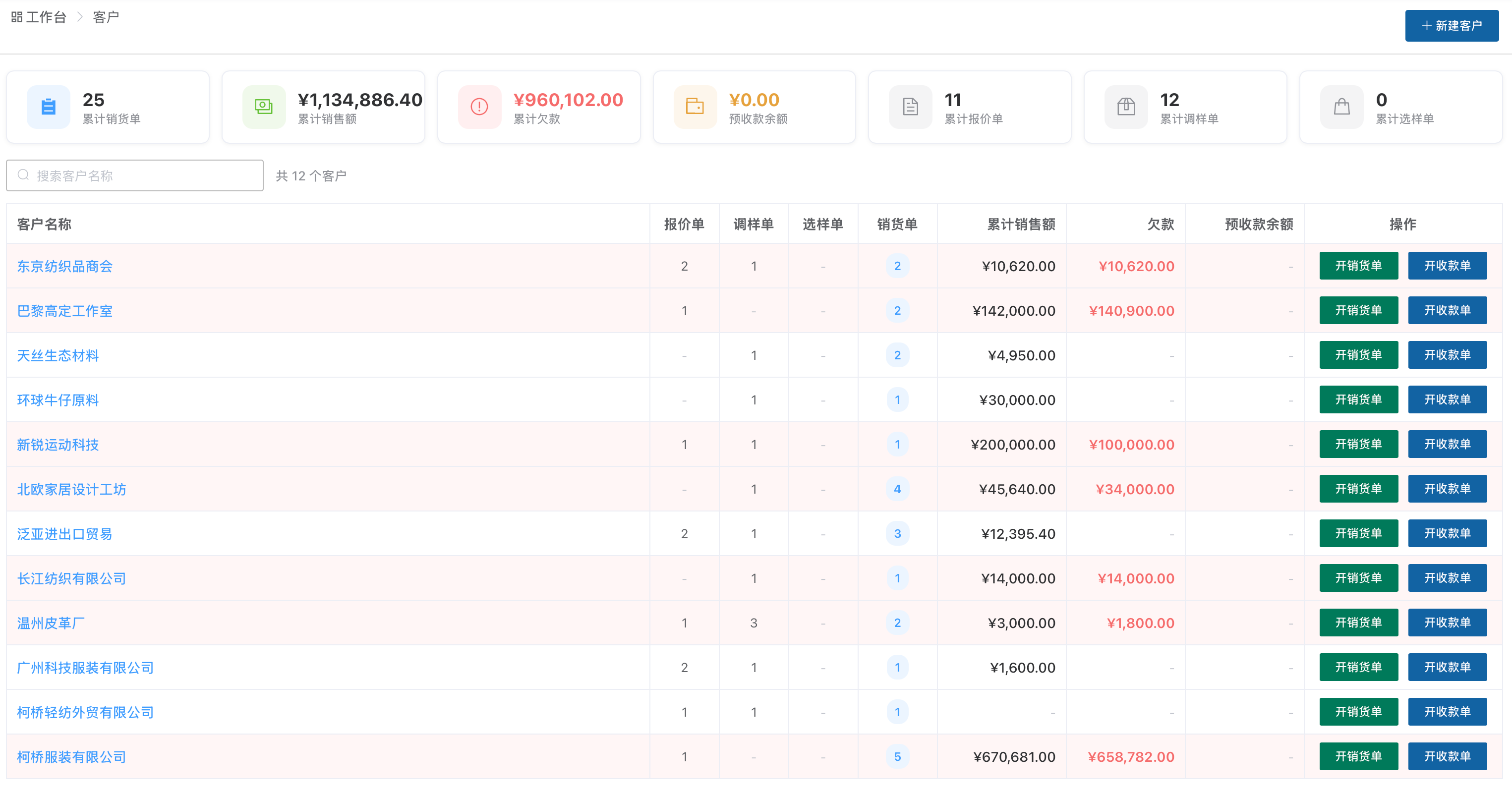
Click the left menu "Contacts" → "Customers" to open the customer list. The top shows summary cards (number of customers, total sales, total receivables, etc.), and the list shows each customer's quotations, sample-transfer notes, sample-selection notes, sales notes, sales amount, receivables, and more, with quick "Create Sales Note" and "Create Receipt Note" buttons.
Supplier list
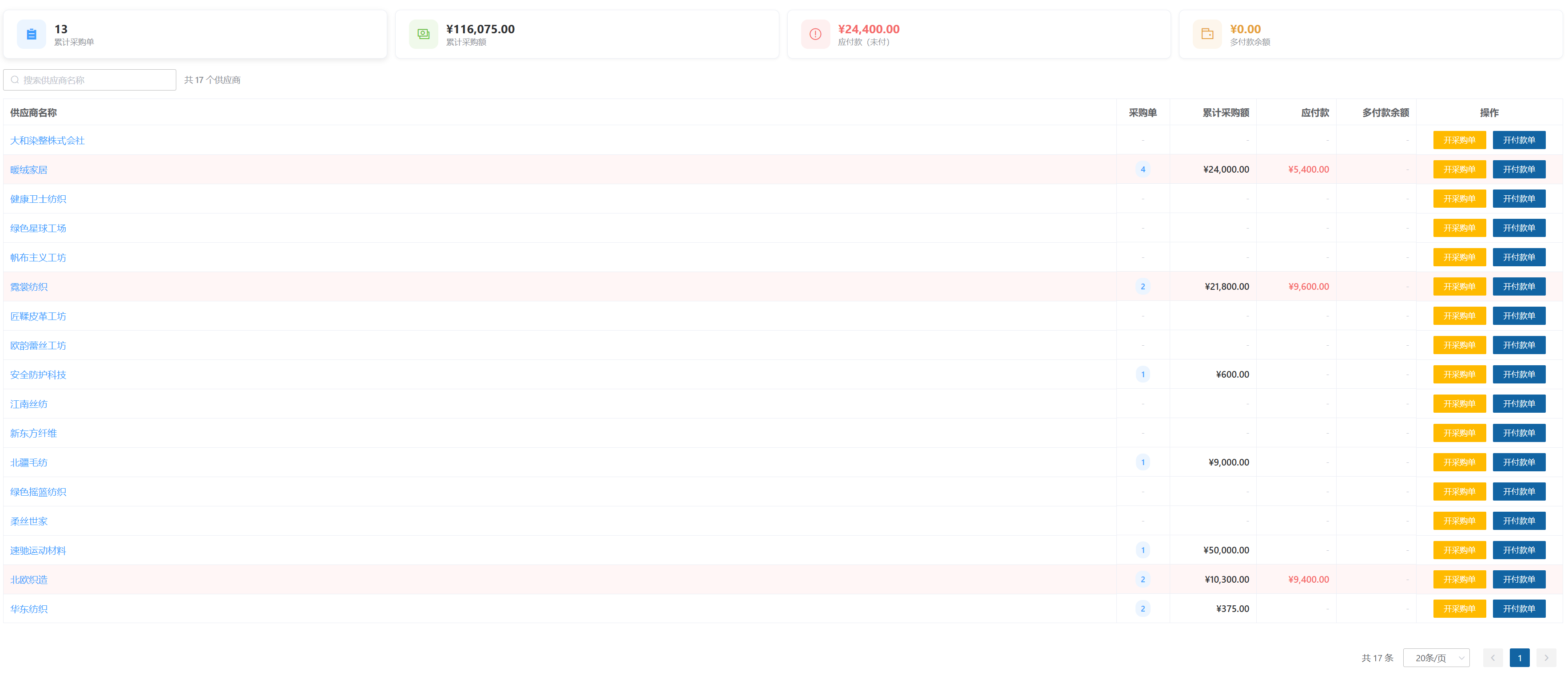
Click the left menu "Contacts" → "Suppliers" to open the supplier list. The top shows summary cards (number of suppliers, total purchases, unpaid amount, etc.), and the list shows each supplier's purchase-note count, cumulative purchases, paid, and unpaid amounts, with quick "Create Purchase Note" and "Create Payment Note" buttons.
Quick registration: smart recognition & business card OCR
When adding a contact (customer / supplier / factory alike), the top of the form has a collapsible "智能识别 · 粘贴一段话自动填表" (smart recognition — paste a block of text to auto-fill the form) section, marked "free". It works in two ways:
Paste text to recognize
Paste a block of text the customer / supplier sent you (a WeChat signature, a chat message, an email sign-off, etc.) straight into the box and click "识 别" (Recognize); the system extracts the company name / contact person / phone / email / address locally in your browser and fills them into the form below.
- Parsing happens entirely locally — it consumes no AI credits and is free
- Recognition isn't perfect; double-check the filled-in fields before saving (the page shows the same reminder)
Upload a business card
Click "上传名片识别" (upload a business card to recognize) and pick a photo of the card; the browser runs OCR locally, then the recognized text goes through the same smart-recognition flow above to fill the form.
- Likewise fully local, no AI credits consumed
- The first use needs to download the recognition model and is a bit slow (the browser caches it afterwards)
- A blurry photo or unusual fonts will lower the recognition rate; if no text is detected, you'll be prompted to try a clearer photo — and you can always fill the form in by hand
Sales receivables summary
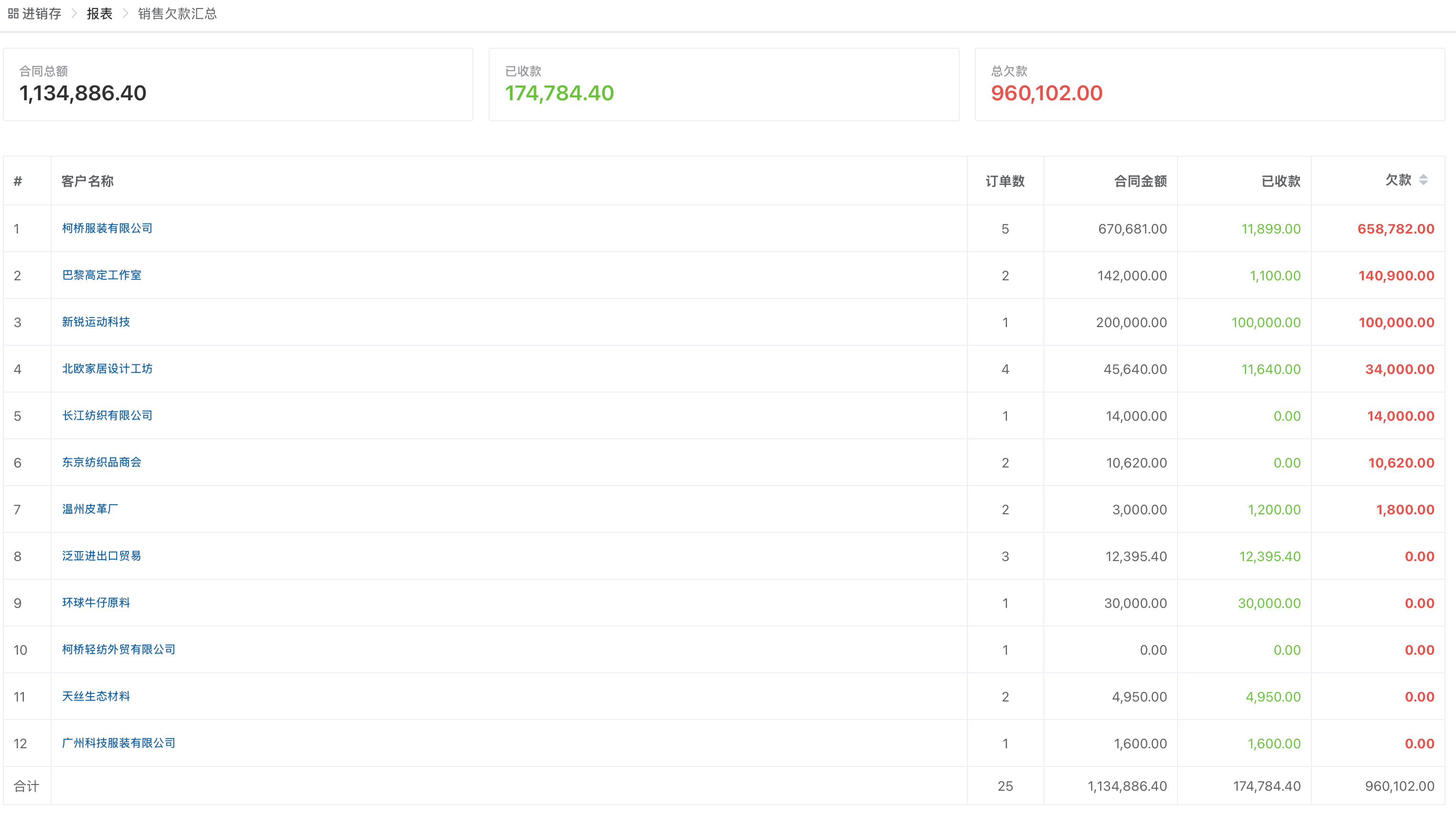
Click the left menu "Reports" → "Sales Receivables Summary" to see all customers' receivables at a glance. The three cards at the top show total contract amount, amount received, and total receivables, and the table below lists, row by row per customer, the order count, contract amount, amount received, and receivable amount — so you can instantly spot the customers who owe the most.
For a detailed introduction to the reporting features, see Report Features Explained.
Contact categories
The system supports the following 9 contact types:
| Type | Description | Associated documents |
|---|---|---|
| Customer | A customer who buys fabric | Sales notes, receipt notes, quotations, sample-transfer notes, sample-selection notes |
| Finished-fabric supplier | A supplier of finished fabric | Purchase notes, payment notes |
| Greige supplier | A greige (raw fabric) supplier | Greige purchase notes, payment notes |
| Processor | A general processor | Outsourcing notes |
| Dye house | A dyeing processor | Dyeing instruction sheets |
| Print house | A printing processor | Printing instruction sheets |
| Embroidery factory | An embroidery processor | Outsourcing notes (embroidery step) |
| Weaving mill | A fabric-weaving factory | Production instruction sheets |
| Finishing mill | A post-finishing processor | Finishing instruction sheets |
Type aliases & subcategories
Under "Personalization → System Settings → Contact Categories" (also reachable from the "configure type aliases / finished-fabric supplier subcategories / hide factories" link at the top right of the "All Contacts" page), you can tailor the categories to your company's habits:
- Type aliases: give the built-in types your own names — for example, alias "印染厂" (Dye house) to the shorter "染厂"
- Finished-fabric supplier subcategories: define your own subcategories (e.g. "Keqiao storefront (woven)"); they are selectable when creating / editing a finished-fabric supplier, and the "All Contacts" list can filter by subcategory under the finished-fabric supplier tab
- Greige supplier subcategories: greige suppliers support subcategories too, configured and filtered exactly like finished-fabric suppliers — handy for splitting suppliers further by fabric category or region
- Hidden factory types: hide the factory types you never use, and the "All Contacts" page stops showing their tabs (existing records are not affected)
Real-world scenarios
Scenario 1: Salespeople each manage their own customers
Need: The company has 3 salespeople, each responsible for their own customer base, without interfering with one another.
How to set up:
- Give all 3 salespeople functional permissions such as "sales note"
- In each customer's contact details, set the corresponding salesperson as owner
- Result: each salesperson only sees the customers they own and the related documents
Scenario 2: A buyer only sees suppliers
Need: A buyer is responsible for 3 suppliers and does not need to see customer data.
How to set up:
- Give the buyer the "purchase note" functional permission, but not the "sales note" permission
- Set the buyer as owner of the 3 suppliers' contacts
- Result: the buyer only sees the purchase notes and payment records for these 3 suppliers
Scenario 3: The boss sees all data
Need: The boss needs to see all customers' and suppliers' data across the company.
How to set up:
- The company creator (the registered account) automatically has full data permission, with no extra setup needed
- For other management accounts, you can add them to the owner list of all contacts, or grant the "Participate in all contacts" permission
Scenario 4: A new employee takes over a customer
Need: A salesperson leaves and the customer needs to be handed over to a new employee.
How to do it:
- Open the contact details of each customer that needs handover
- Change the owner from the old employee to the new one
- The system automatically notifies both parties
- The new employee can immediately see all of that customer's historical documents and money records
FAQ
An employee says they can't see certain sales notes?
The most common reason is that the employee is not the owner of the corresponding customer. Fix: add the employee as an owner of the corresponding contact.
Can a customer have multiple owners?
Yes. For example, a key account can be jointly owned by a salesperson and a sales manager, and both can see that customer's data.
Who can see a newly created customer?
When you create a customer, the creator automatically becomes the owner. If others need to see it too, add them as owners manually after creation.
After an owner is removed, can they still see the old documents?
No. Once removed as owner, the employee immediately loses access to all of that customer's/supplier's associated data (including historical documents).
Related articles
- People & Role Management — set functional permissions (layer 1)
- Data Access Control — the detailed rules of data permissions
- Inventory Features Explained — sales, purchase, and other document operations