
Using Quotations, Sample Dispatch Orders, and Selection Orders
Overview
Jenny Software offers three main features that work together with samples: quotations, sample dispatch orders, and selection orders. Users typically check the samples they want to quote or dispatch, add them to the Sample Basket, and then proceed.

Quotation
Creation Workflow
- Click Create Quotation to enter the editing form page
- Select the customer. The contact is optional—once you pick a customer, the system automatically fills in that customer's first contact, which you can change or clear by hand
- Specify the form owner (the person quoting and the person creating the form can be different)
Convert directly from a customer inquiry
If a customer selected samples in a showroom or share inquiry, the "Convert" action on the inquiry list can create a quotation directly: the samples the customer chose are carried into the line items automatically, and the customer's name / phone are written into the order remarks.
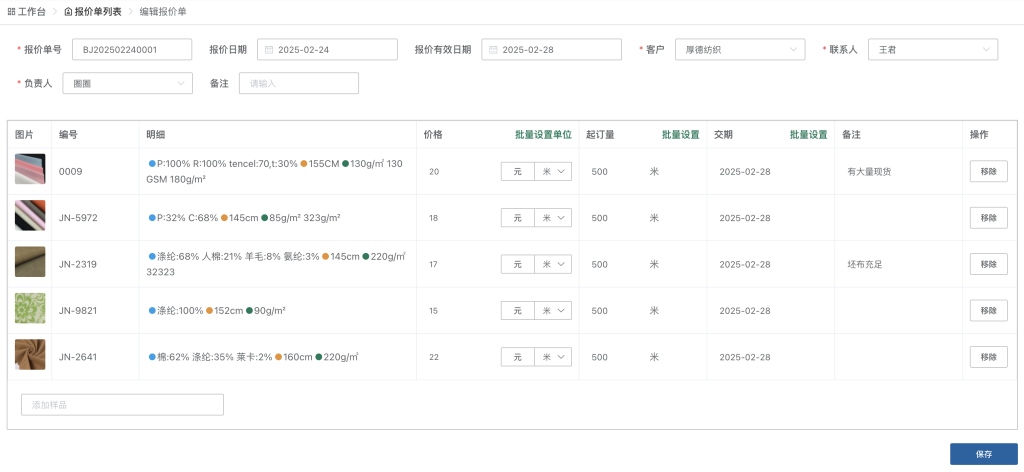
Filling in Key Data
You need to fill in the following three pieces of information:
- Price
- Minimum order quantity
- Delivery time
The system supports setting these values in bulk.
Follow-up Actions
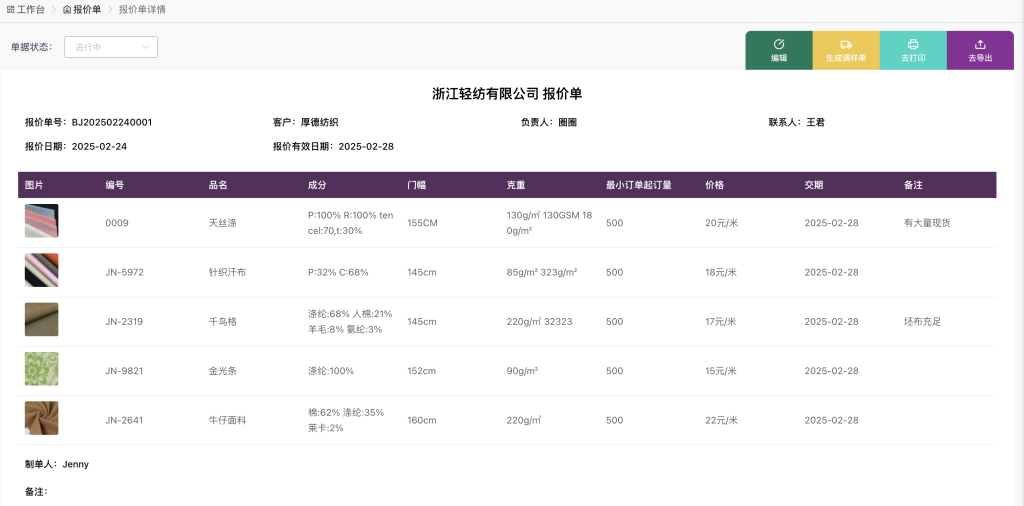
After saving the quotation, you can:
- Generate a sample dispatch order (product data is passed through automatically)
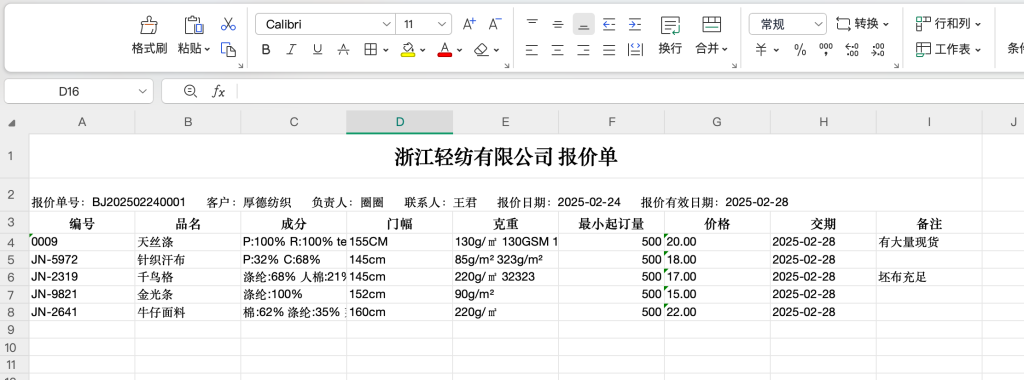
- Print it or export it to Excel
- Export with your own template: upload your company's own Excel quotation template, replacing the cells to be auto-filled with
{{field name}}placeholders (in the line-item area, write a single row of{{产品.编号}}(product number),{{产品.报价}}(product quote), and so on). On export, the system fills in the document data automatically, duplicates the line-item row for each product, and keeps your formatting. Multiple templates are supported (upload / rename / delete), and you can "download the sample template" first and restyle it into your company's layout. The sample dispatch order detail page supports the same feature - Adjust the quotation status for a supervisor or manager to review
Finding Documents by Product (Style)
The quotation list has a new "product number / name" search box: type a style number or product name to pull up every quotation whose line items include that product. Combined with the customer filter, "what price did we quote this customer for this style" takes only a second to answer. The sample dispatch order list supports the same search.
Sample Dispatch Order
Creation Sources
- Created from the Sample Basket
- Generated from a quotation
- Generated via "Convert" from a showroom or share inquiry (the samples the customer selected are carried in automatically, and the customer info is written into the order remarks)
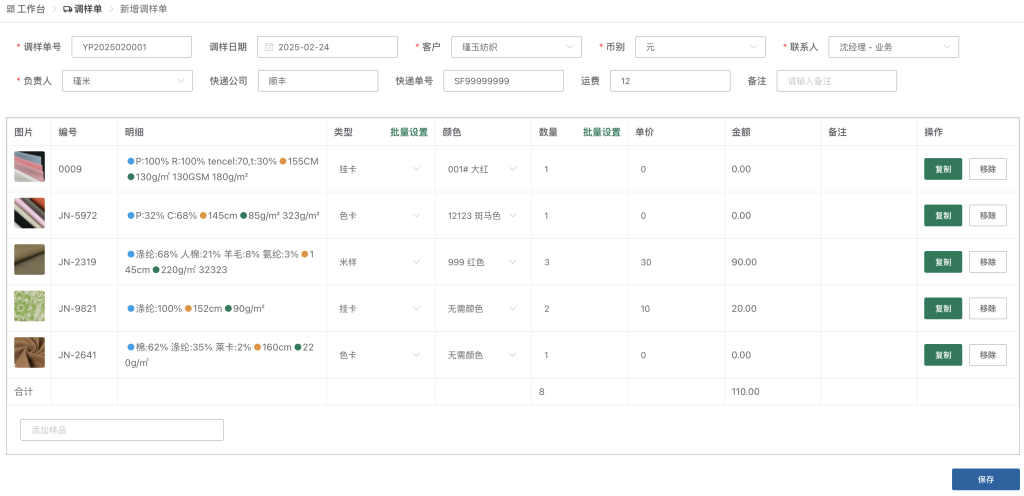
Required Field Settings
- Dispatch type: five options—hanging card, color card, meter swatch, kilo swatch, A4 swatch
- Color selection: you can choose "no color needed" (for hanging cards, color cards, etc.)
- Quantity: the unit is automatically matched to the type
- Unit price: meter swatches and kilo swatches are generally charged
The system automatically calculates each line amount and the total amount.
Features
- Supports generating a quotation
- Supports printing and exporting to Excel
- Will later support pushing the dispatch order to the recipient (if it includes courier/logistics information)
Selection Order
Special Nature
A selection order is not generated proactively; instead, it is created when a buyer scans the QR code on a sample label with WeChat and submits a selection.
Client-Side Workflow
The page shown after scanning includes:
- Fabric images
- Basic information (only fields with "Share" permission are displayed)
- Color / color card information
- Supplier and cost information are hidden by default
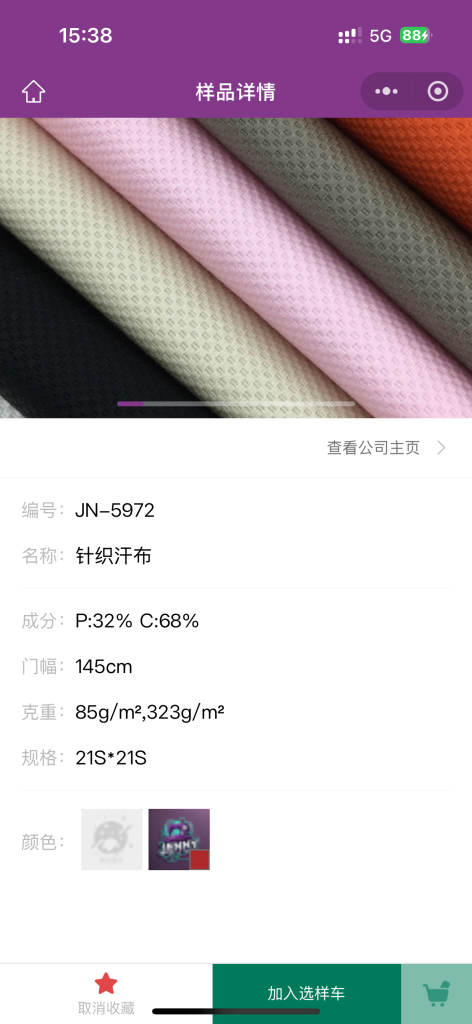
Customer options:
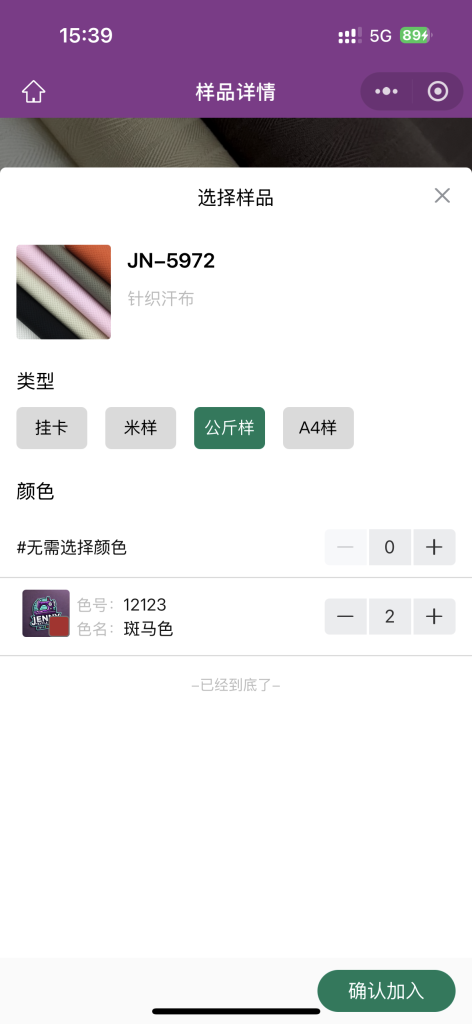
- Favorite the sample
- Add to the selection basket, choosing:
- Sample type
- Color (optional)
- Quantity
Continuous scanning: use the QR code for PDA-style scanning—no need to open each fabric's details one by one; samples are added directly to the selection basket.
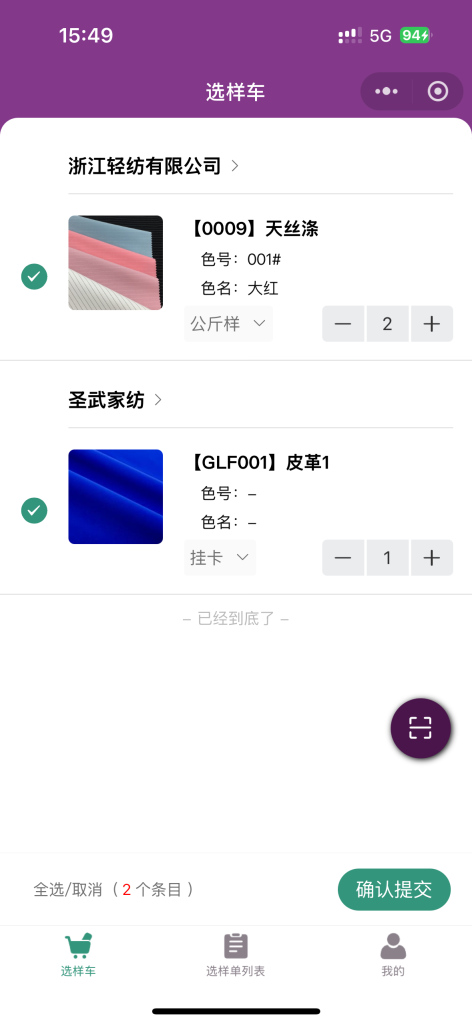
Finally, click the "Confirm and Submit" button, and the customer can view the selection information they submitted, along with the supplier's processing status, right on their phone.
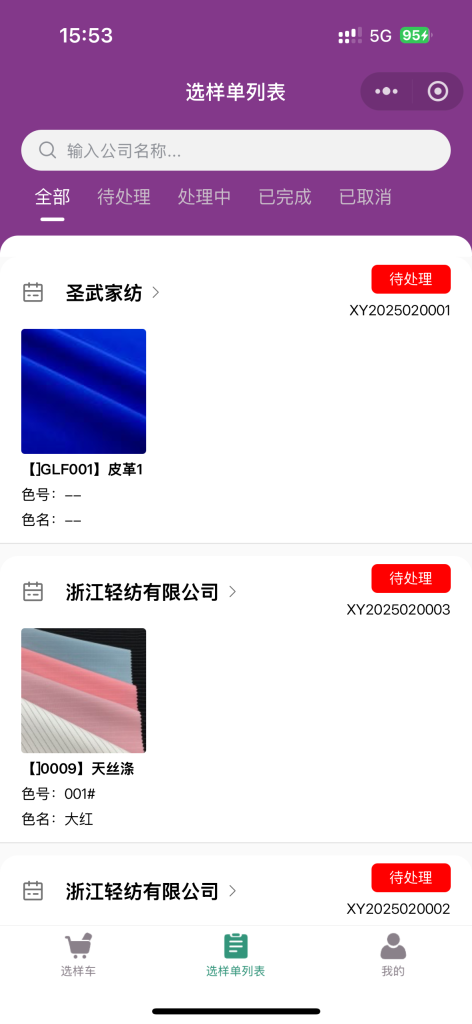
Supplier-Side Operations
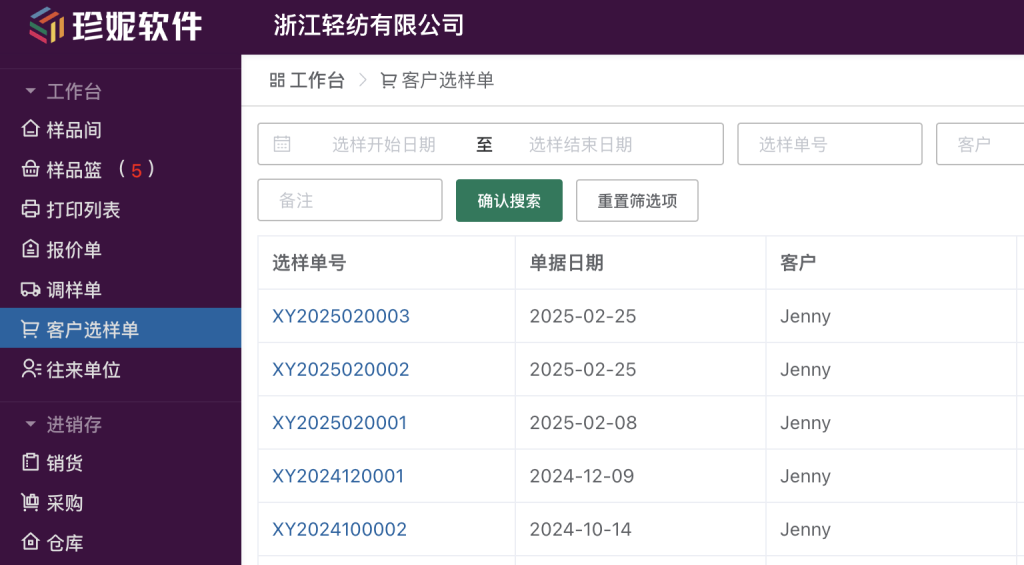
In the web app under Workbench → Customer Selection Orders, you can:
- View all selection information submitted by customers (filter by date / order number / customer / owner, with Excel export supported)
- Quote or dispatch samples based on the selection information
- "Generate Exhibition QR Code" in the top-right corner: display the QR code at a trade show so customers can self-select samples by scanning, and completed selections automatically flow into the customer selection orders
Business Value
This feature shines at trade shows—a customer can finish selecting samples and receive the courier information in less than an hour. In the fabric business, "speed" is a major competitive advantage.