Data Access Control
1. View permissions for business data
The business data an employee generates can be viewed in the following three cases; in addition, some sensitive fields carry an extra, finer field-level control (see 1.4):
1.1 Super-admin permission
The super admin (i.e., the account owner) can view all business information without any permission restrictions.
1.2 Business-owner permission
The owner of a business can view all of that business's contents.
1.3 Creator permission
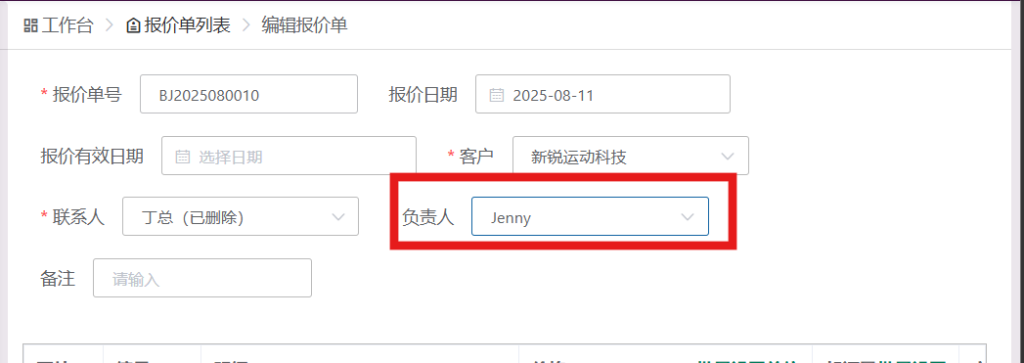
The employee who created a business can also view the related information. For example: employee A created a business document on behalf of colleague B, with B as the owner; although A is not the owner of that business, as the creator A can still view that business's information.
1.4 Field-level visibility: sample cost information
Beyond "whether the business as a whole is visible," some sensitive fields have an extra, finer layer of control. The typical example is a sample's cost information (the cost calculator, purchase price, etc.): by default it is visible only to the company owner—even employees who can see the sample itself cannot see the cost-related fields. To let an employee view costs, there are two ways:
- Tick the employee in the "cost view authorization" list under "Personalization → System Settings → Finance Settings" (the Finance Settings page is visible to the company owner only; the existing authorization list keeps working as before)
- In "Personalization → Role Management", tick the "样品-看成本" (Samples – View Costs) permission point on the employee's role (added in June 2026, unticked by default)
Meeting either one is enough to see the cost information. For the sample features themselves, see Sample Management.
2. How related orders display after contact information is deleted
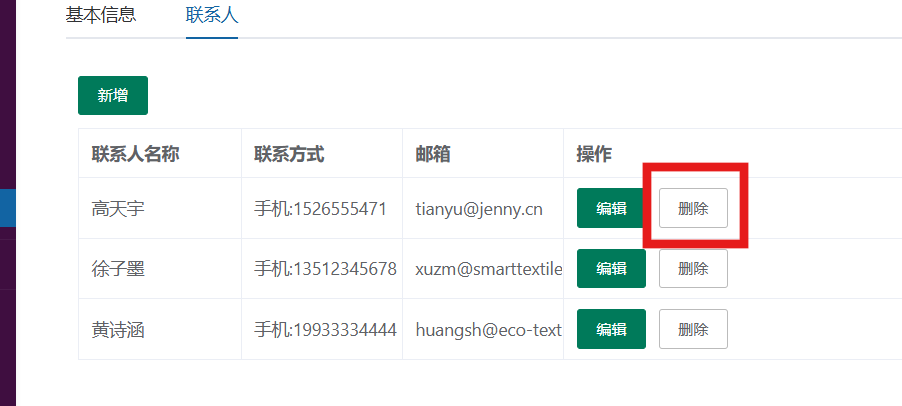
2.1 Deleting a company contact person
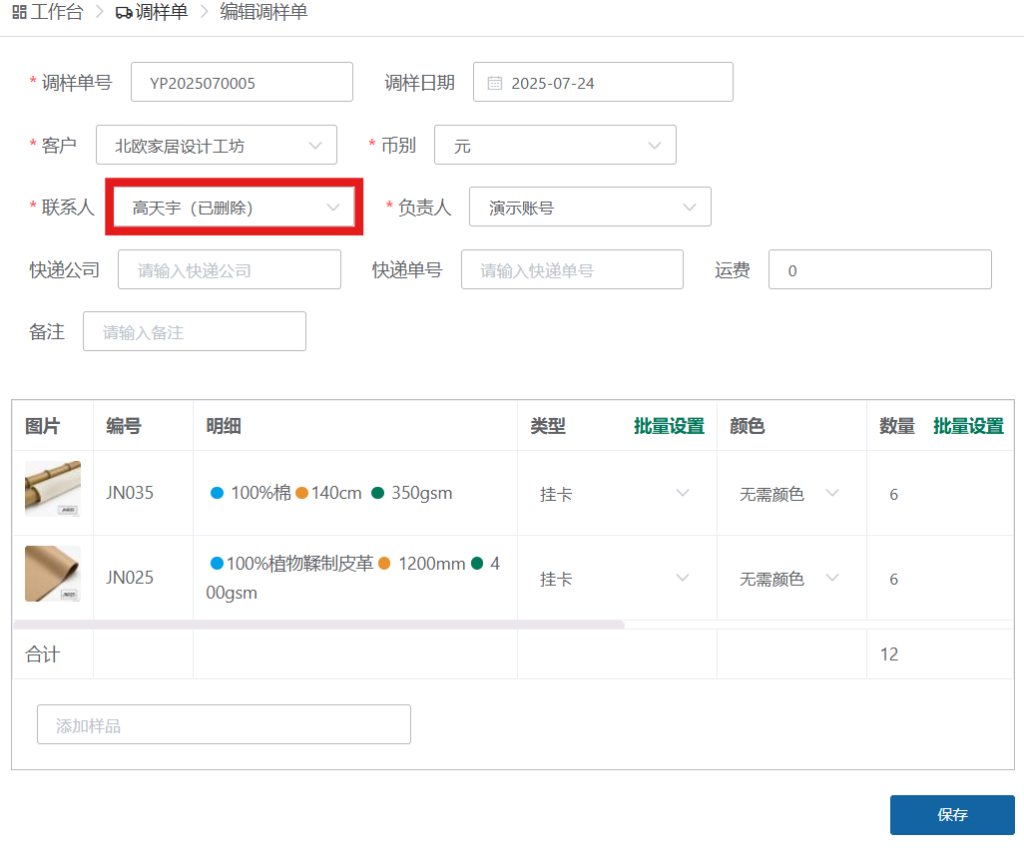
After a contact person is deleted, the contact-person name in all related documents is suffixed with "Deleted," ensuring historical records remain traceable.
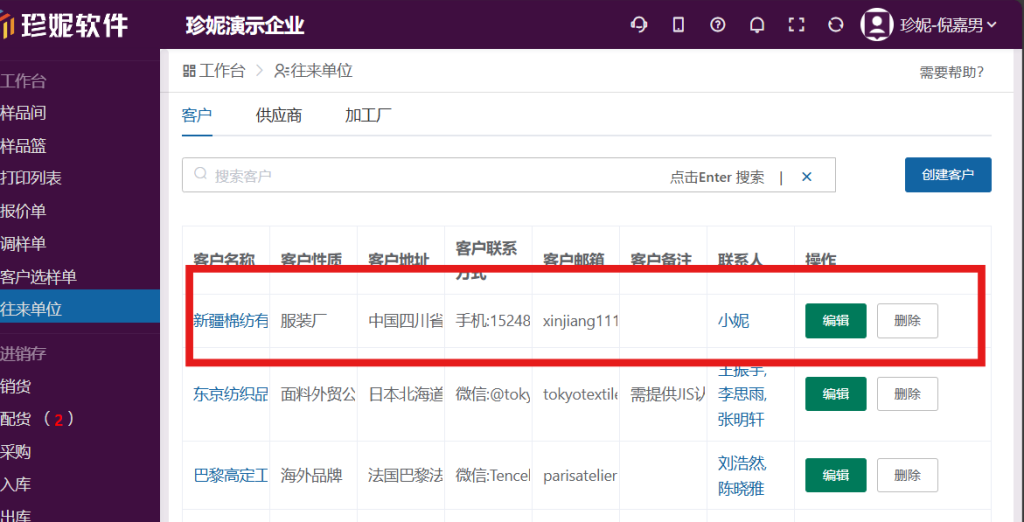
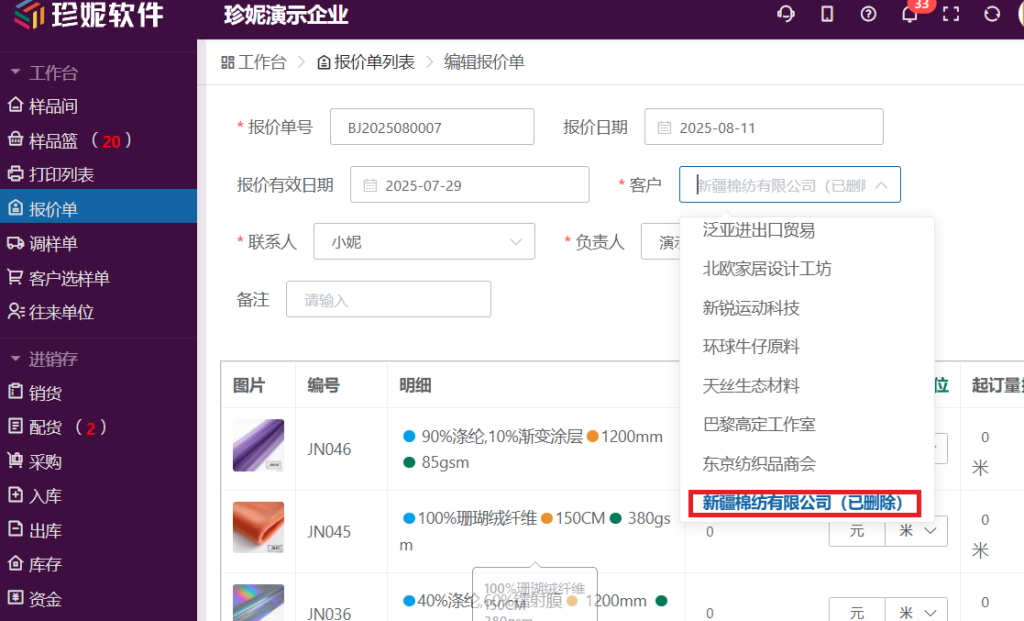
2.2 Deleting an entire company
After deleting an entire contact (including its contact people), the company name in related documents is suffixed with "Deleted."
3. Business handover when an employee's account is deleted after departure
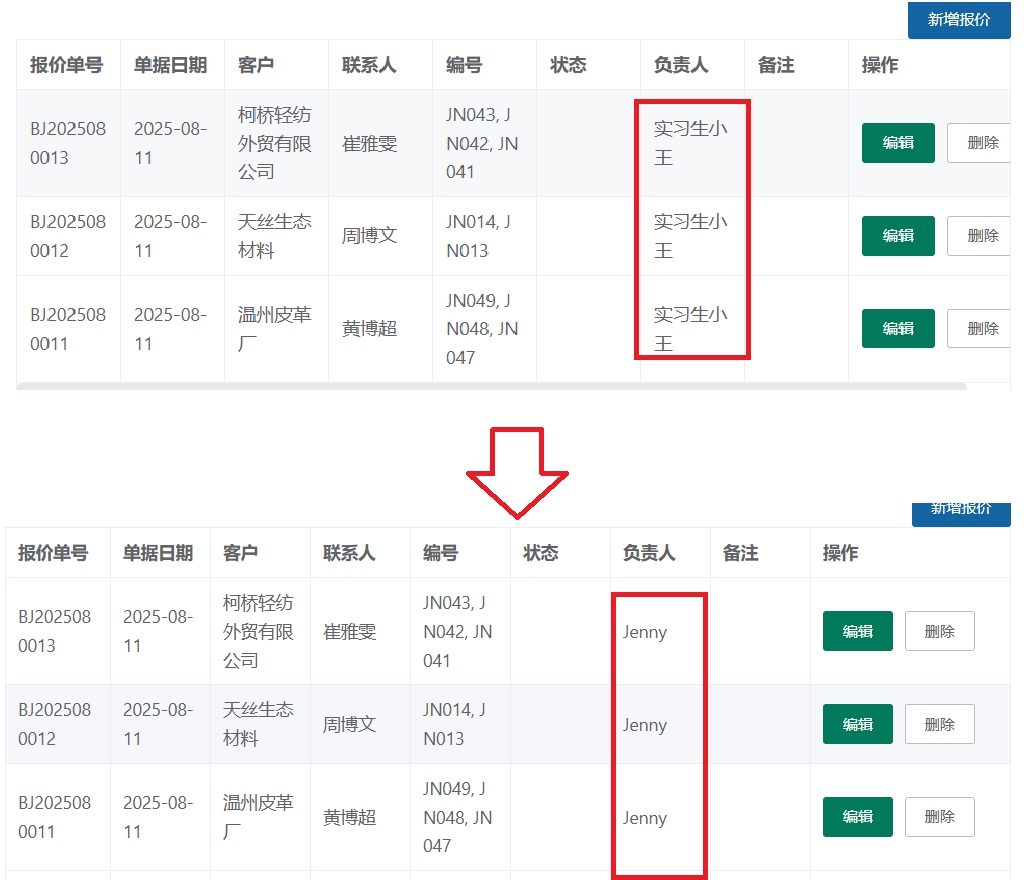
When an employee leaves and their account needs to be deleted, the system automatically pops up a business-handover selection box, and the admin can designate that all of the employee's businesses be transferred to another employee.
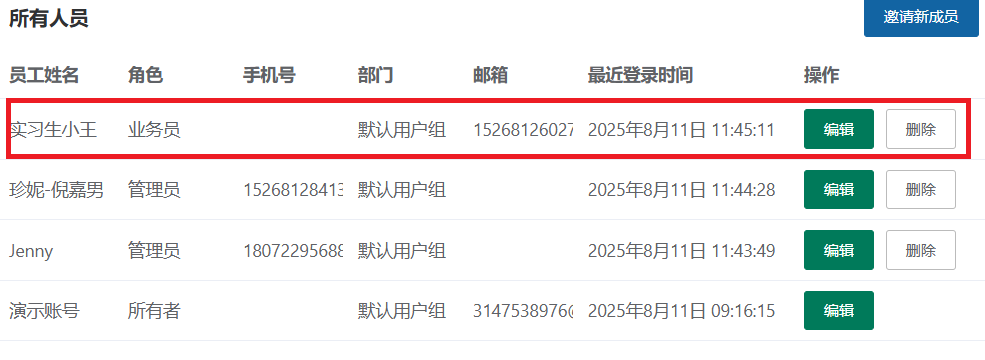
After the admin confirms the account deletion, choose the recipient in the handover selection box:
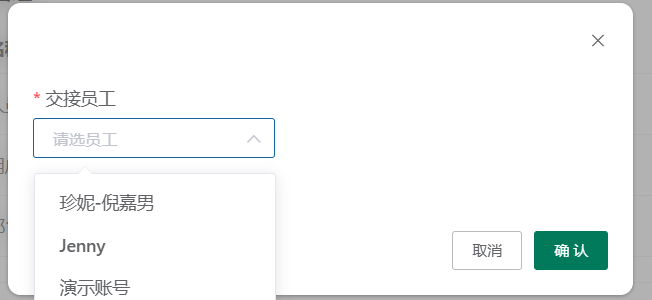
All of that employee's order data and the businesses they own are automatically transferred to the designated recipient:
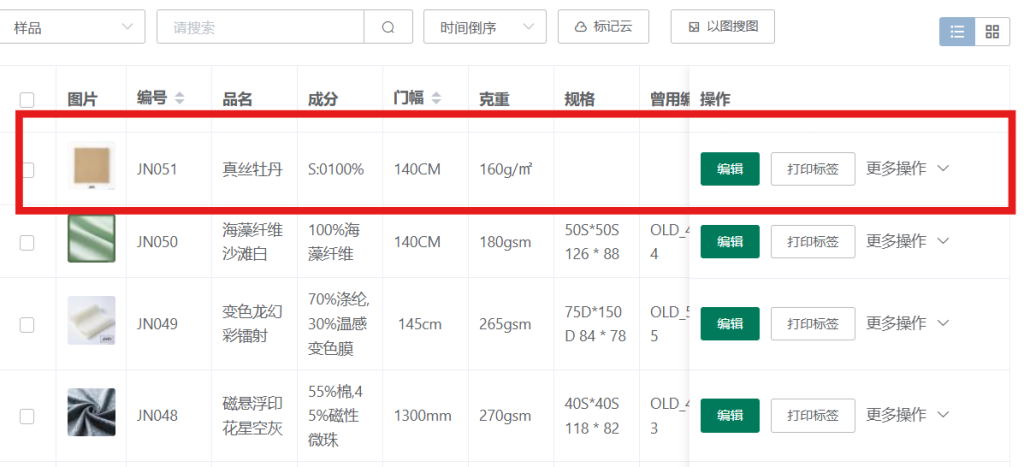
4. Deletion rules for product (sample) data with existing documents
Note
Deleting samples is generally not recommended.
When a sample is already linked to inventory documents such as sales notes, quotations, or outbound notes, the system does not allow deleting that sample directly. You must delete the related documents first, then delete the sample.