
Jenny Fabric Inspection Terminal App (Workshop Touchscreen All-in-One)
Scope
This guide covers the standalone Android inspection terminal for industrial tablets and Android touchscreen devices. For computers and Windows touchscreen devices, see the web inspection guide. The web app can create tasks, enter and complete rolls, and view reports. Both clients use the same company tasks and records, but their interfaces and printing methods differ.
This article is a dedicated deployment + operation guide for the inspection terminal app. To first understand what fabric inspection is and how to use it on the PC side, see Jenny Fabric Inspection (system overview).
1. What it is / who it's for
| Item | Description |
|---|---|
| Form | A standalone Android app (package name cn.jenny.fabric.inspection), installed on an Android industrial tablet / touchscreen all-in-one machine, forced into landscape, fitted for 10–12 inch large screens |
| What it isn't | It is not a menu inside the PC web version, nor is it the main fabric phone app. It's a separate installation package |
| Who uses it | Workshop fabric inspectors — standing next to the inspection machine / inspection table, with a large screen + large buttons + a built-in numeric keypad, easy to tap even while wearing gloves |
| Data | Reuses the same backend as Jenny Fabric Software. Inspection tasks, the defect dictionary, and per-roll inspection data share the same cloud data with the PC and the main app, interconnected in real time |
Web and Android are updated separately
A web workflow update does not mean that the Android package has received the same interface. Follow the controls shown in the installed app; browser draft recovery and system printing instructions do not apply directly to Android.
2. Download and install
The inspection terminal app is distributed via a direct download link and is not on the app store — this is its official distribution method (it won't rely on an app store going forward; just grab the latest version from the download link).
Fixed download link (never changes)
- Open this link in the tablet's browser and the APK downloads automatically.
- This link never changes — each time we release a new version, we simply overwrite the same file, so re-downloading always gets you the latest version.
- At the desktop / on-site you can also scan a download QR code for this link (ask customer support for it).
Current published version: v1.0.15. The app also checks the official update manifest at startup; use the version shown by the downloaded package or in-app update prompt as the latest source of truth.
Installation (allow "unknown sources")
Because it's not installed from the app store, the first time you install it Android prompts about "unknown sources" — just tap "Settings" in the pop-up to allow it. This is the system's default protection and is not the same as a virus.
For the exact location of the "unknown sources" toggle on each tablet brand (Huawei / Xiaomi / OPPO / vivo / Samsung / stock Android), and for handling common errors like "parse package error / app not installed," follow the same general guide:
➡️ Install the latest Android APK
Installing on an all-in-one machine
A touchscreen all-in-one machine is essentially an Android tablet, and the installation steps are identical to those on a phone: open the link in the browser → download → tap the APK → allow unknown sources → install → log in with your Jenny account.
In-app auto-update (no app market needed)
Once installed, you no longer have to download APKs by hand for future upgrades:
- The app automatically compares versions on every launch, and when it finds a new version it prompts you with a pop-up;
- Tap "Update," and the app downloads and launches the installer itself (with a visible progress bar); once installed, carry on using it;
- The whole process doesn't rely on the app store. On Android 8 and above, the first update guides you to grant the "install unknown apps" permission once; after that you don't need to grant it again.
3. Log in
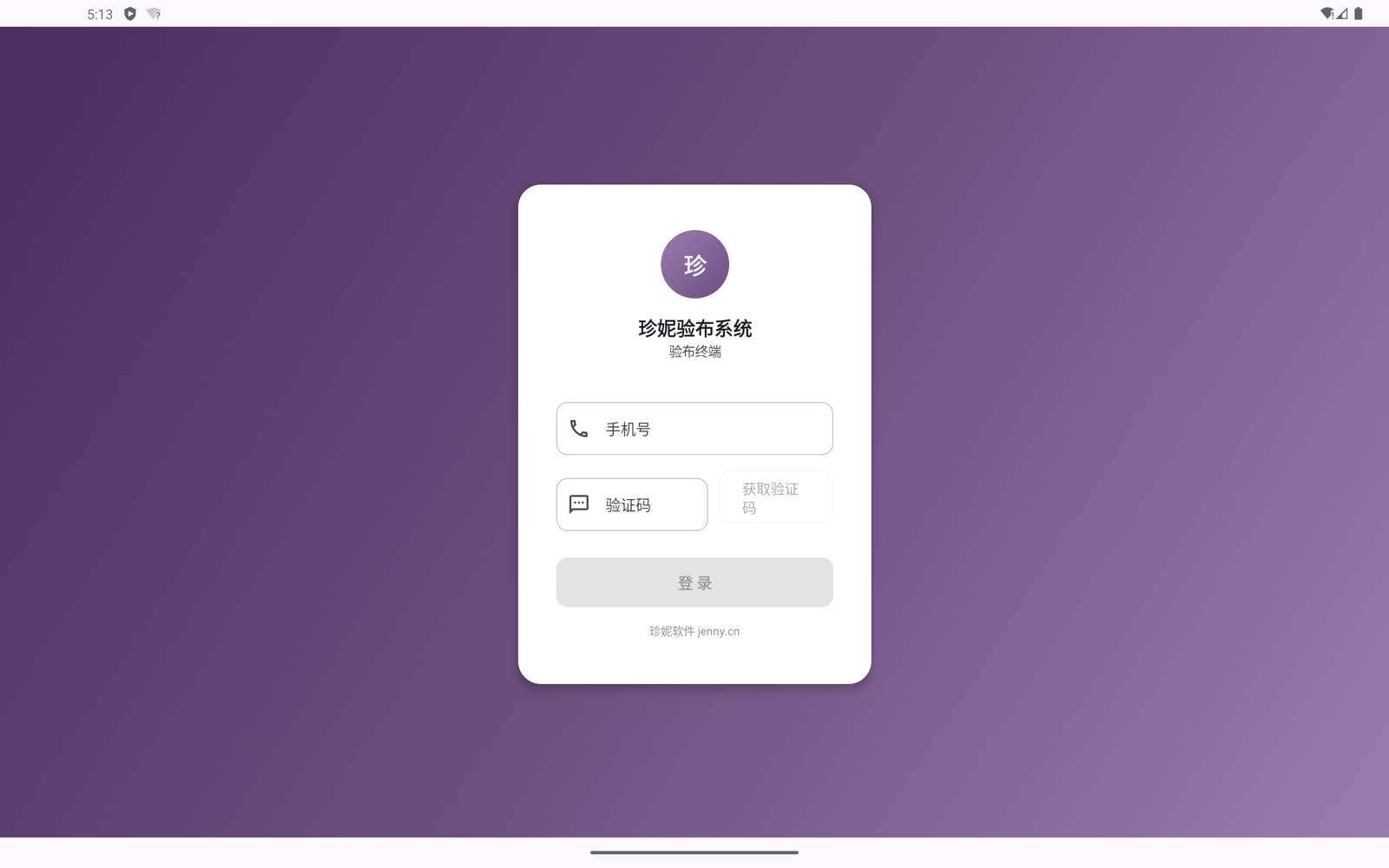
Open the app and log in with your Jenny account — the same account as the PC / main app:
- Password login (default): phone number + password, saving on SMS costs, suited to a fixed workshop machine staying logged in long-term;
- SMS verification code login: phone number + SMS code;
You can switch between the two methods on the login page.
4. Inspection tasks
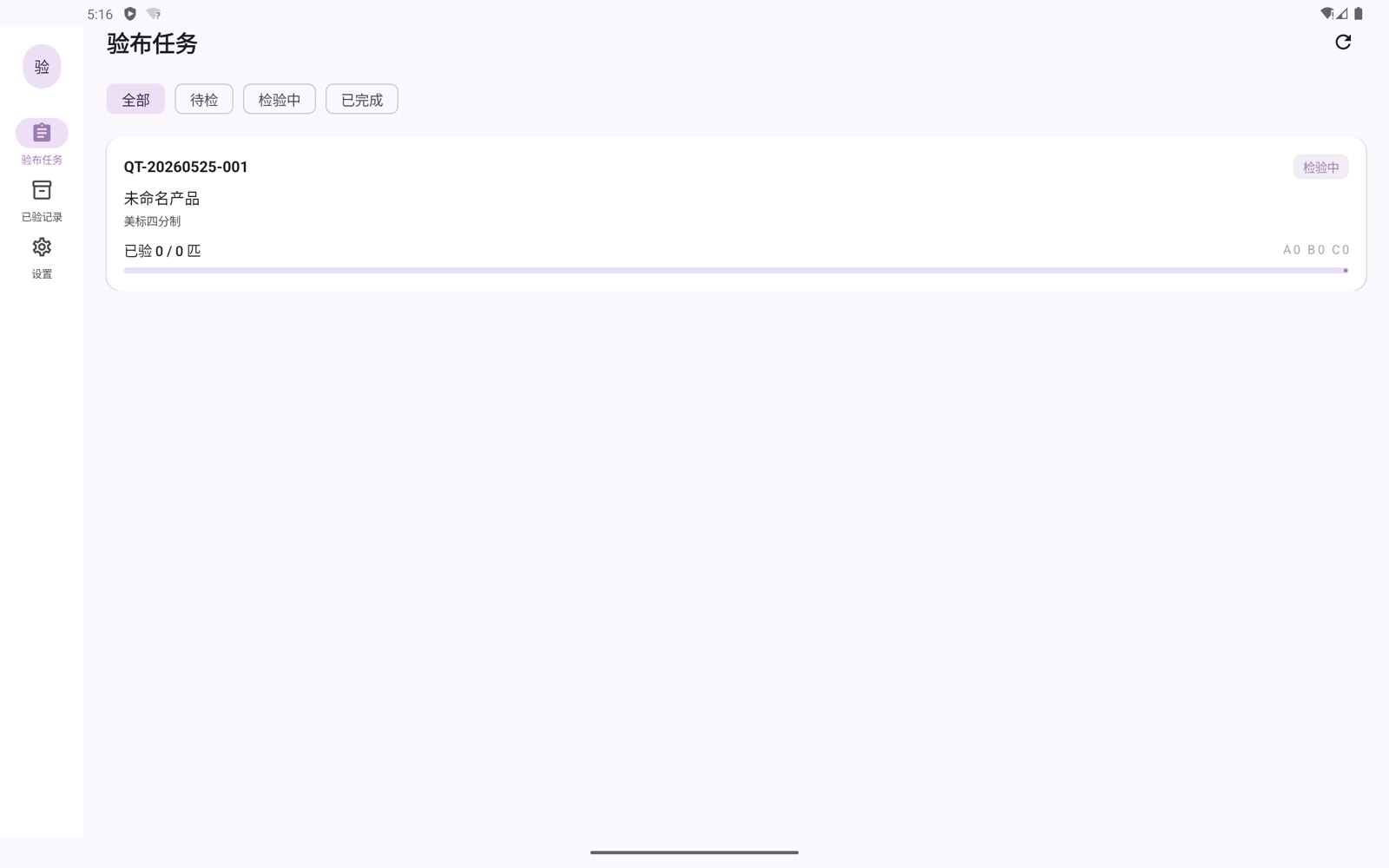
After logging in you enter the task list (left navigation: Tasks / Records / Settings).
Task list
Each inspection task shows:
- Task number / status
- Customer · fabric type · dye-lot · color · inspection standard
- Progress: N inspected / N planned rolls
- Grade distribution: how many rolls each of A · B · C
The top lets you filter by status: All / Pending inspection / Inspecting / Completed.
Where tasks come from
Day-to-day inspection tasks are usually initiated on the PC side (linked to sales orders / outsourcing returns, etc.) and then synced to the terminal for the inspector to pick up and inspect. The terminal mainly "consumes" these tasks.
Creating a task on the terminal (ad-hoc orders / one-off fabric)
For ad-hoc orders, one-off incoming fabric, or fabric not tied to an order, the terminal can also create an inspection task manually. After tapping New, fill in:
| Field | Description |
|---|---|
| Product name (required) | The name of this batch of fabric |
| Item number | Optional |
| Fabric type | Woven / knit / satin / printed / denim (determines which defect buttons the workbench shows) |
| Color / dye-lot | Optional |
| Inspection standard | US / China / Japan / EU / ten-point / customer standard |
| Grading thresholds | A-grade threshold, B-grade threshold (defaults 20, 25; penalty points per hundred meters ≤ A value = grade A, ≤ B value = grade B, above = grade C) |
| Planned rolls / planned quantity / unit | Enter quantities with the built-in numeric keypad; choose the unit as meters / yards |
Creating on the terminal = manual ad-hoc orders only
The terminal's "new task" is for purely manual ad-hoc orders only. Choosing a customer, linking an order, and assigning a processing factory / inspector are configured when initiating a task on the PC side and then synced to the terminal (or are provided in later versions). The terminal cannot yet initiate a task with a customer or factory directly from an order / outsourcing order.
5. Inspection workbench (how the inspector works)
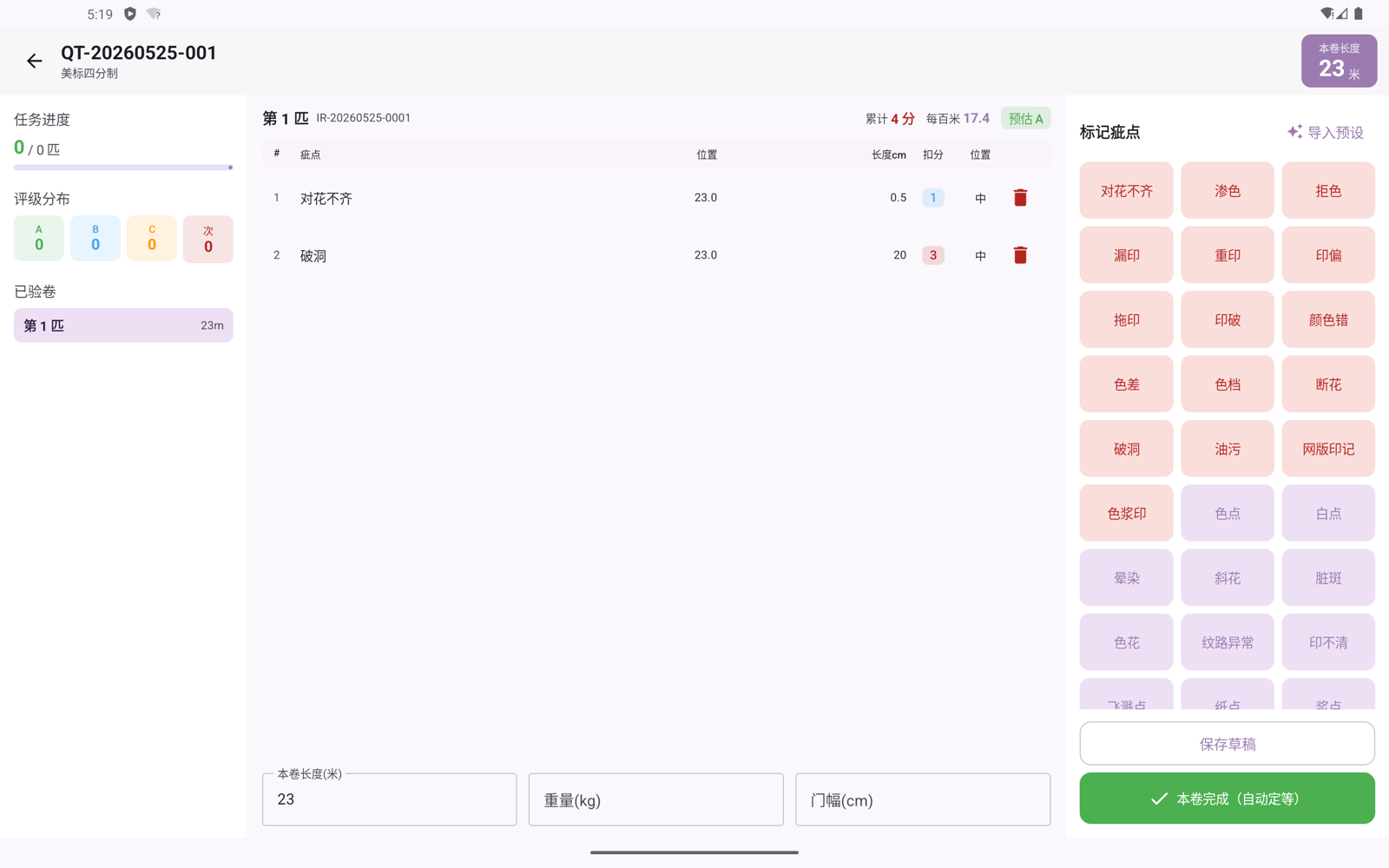
Tap a task to enter the inspection workbench, an immersive three-column entry interface:
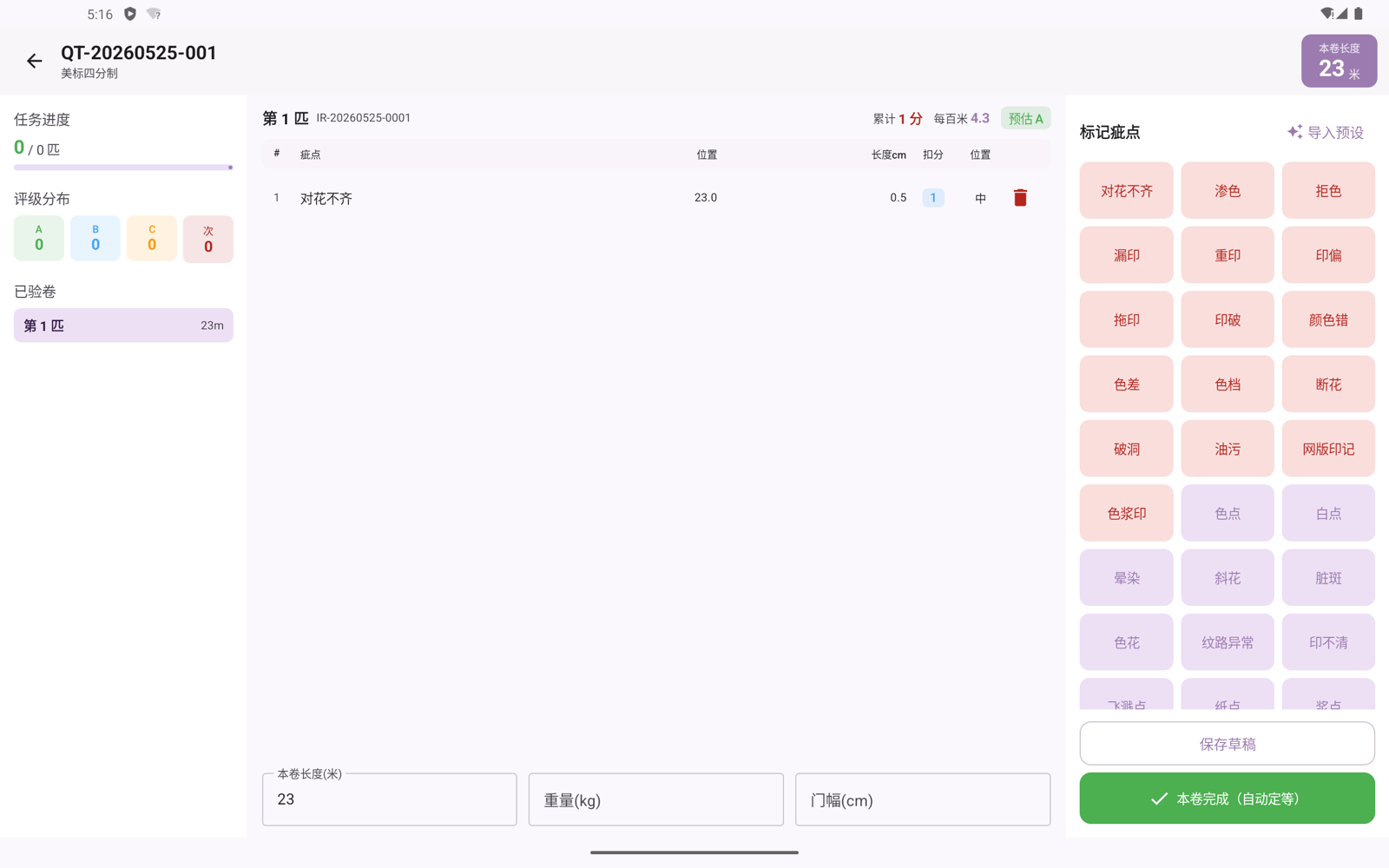
Left column: progress
- The task's overall progress (inspected / planned)
- Grade distribution (A / B / C)
Middle column: the current roll
- This roll's defect list: defect / position (m) / length (cm) / penalty points / horizontal position;
- The top shows in real time: accumulated penalty points · penalty points per hundred meters · estimated grade (calculated as you go, so the inspector knows roughly what grade this roll will be on the spot);
- Enter this roll's length / weight (kg) / width (cm), all with a built-in numeric keypad — no external keyboard needed.
Right column: large defect buttons + actions
- Grid of large defect buttons: large buttons grouped by major / minor; one tap marks a defect (button content comes from the defect dictionary, see the next section);
- Import presets: when the defects aren't enough, import an industry preset defect pack with one tap.
Marking a defect
Tap a defect button (or "Mark defect") to open the entry box, and fill in with the built-in numeric keypad:
- Position (m): at which meter the defect is
- Length (cm)
- Horizontal position: left / center / right
- Penalty points: the customer standard or a fixed-point defect supports manually entered penalty points; other standards calculate automatically by defect length
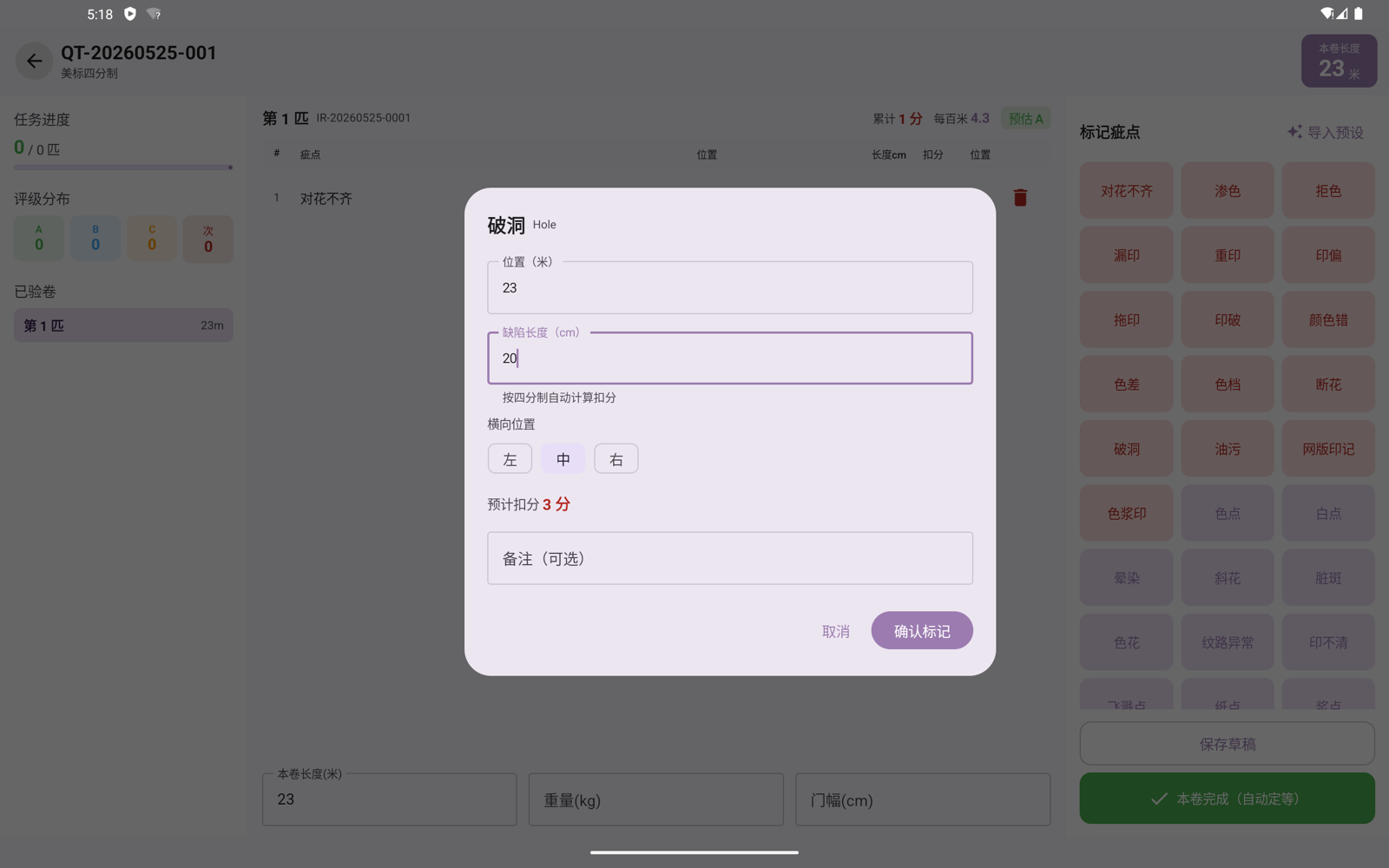
Once you mark a defect, it goes into the middle column's defect list, and the accumulated penalty / penalty per hundred meters / estimated grade at the top update in real time — calculated as you go, so you don't have to wait until the whole roll is inspected to know the result.
Roll finished → automatic grading
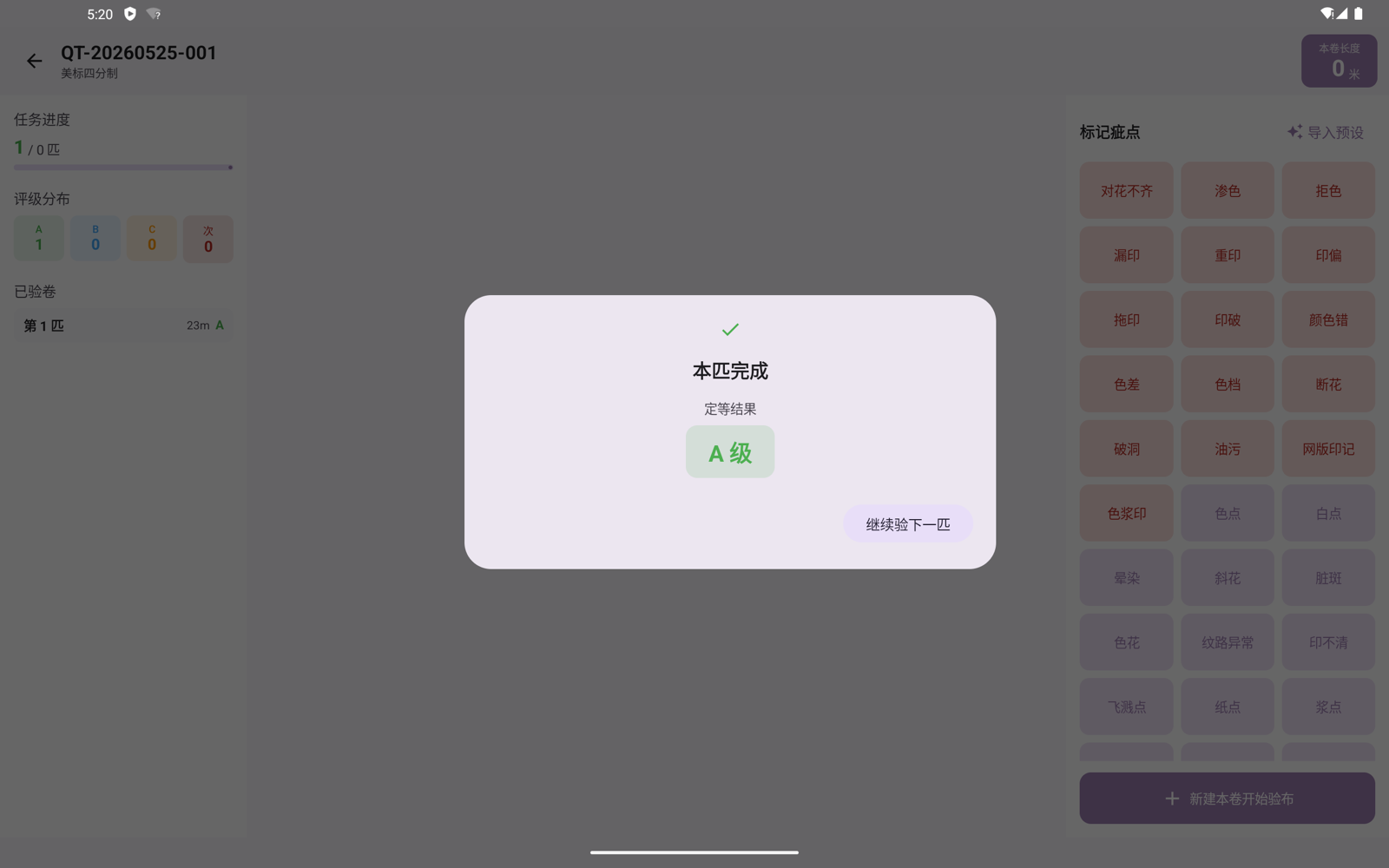
After entering this roll, tap Finish, and the system automatically judges A / B / C by accumulated penalty points under the four-point system.
Roll completed → print label
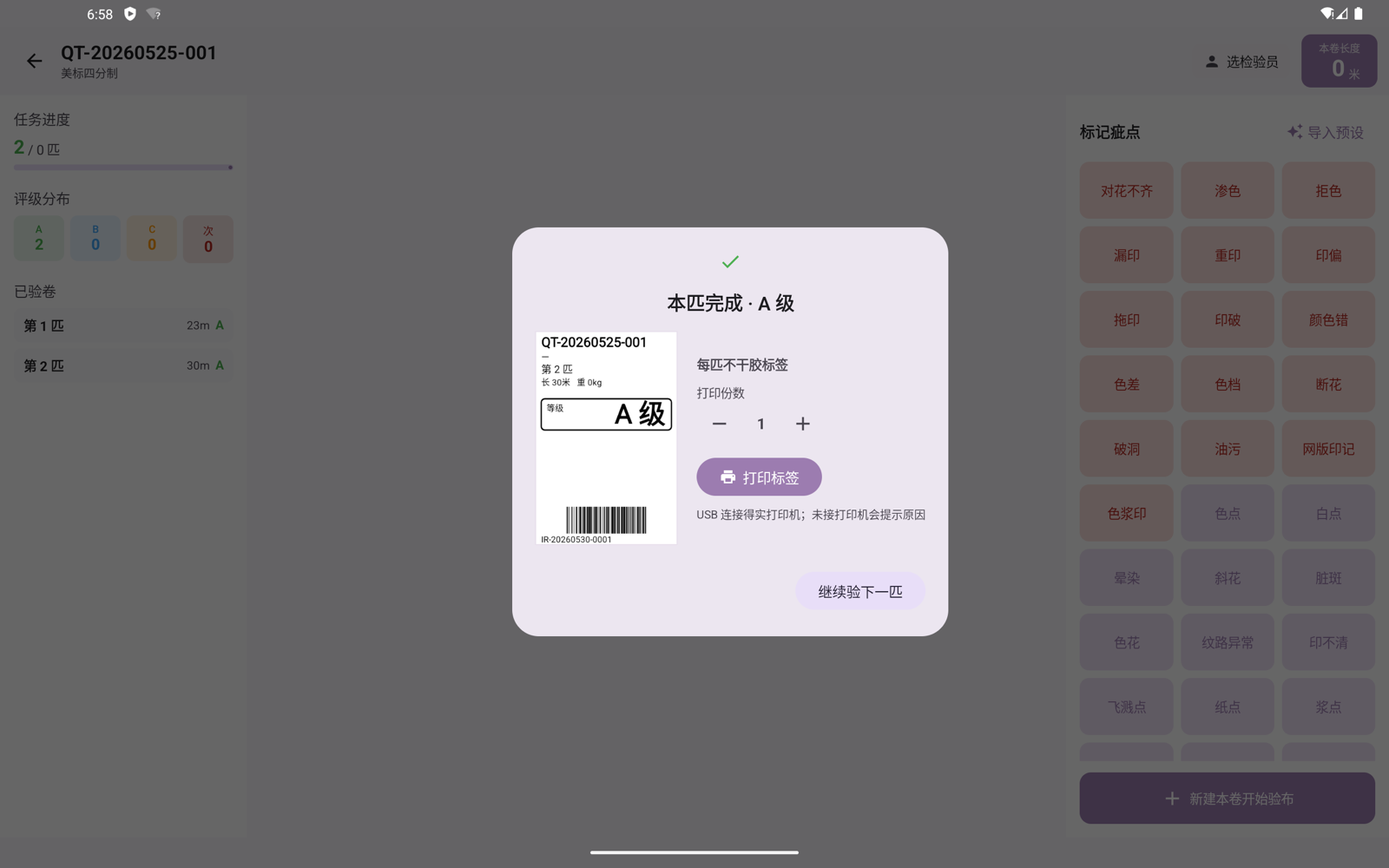
Once a roll is inspected, a per-roll adhesive label preview pops up: it contains the task number / product / dye-lot / roll number / length / grade + a Code128 barcode, and you can set the number of copies before printing.
About label printing
The terminal supports printing per-roll labels (via a USB-connected label printer). Label rendering and preview have been verified to work; actual printer output on real hardware is still being tuned — if, when first connecting a printer on-site, it doesn't feed paper / prints inverted, contact customer support to adjust it for your printer model. Please don't assume any Dascom model is plug-and-print. If no printer is connected, tapping "Print label" shows "USB printer not found, please check the cable."
6. Four-point-system grading specification
The terminal's grading specification is strictly consistent with the backend:
Supported inspection standards: US (default) / China / Japan / EU / ten-point / customer standard.
Algorithm:
- Each defect's penalty points are calculated by defect length + inspection standard (the customer standard / fixed-point defects are entered manually by the inspector);
- Penalty points per hundred meters = total penalty points ÷ this roll's length (meters) × 100;
- Grading: penalty points per hundred meters ≤ A threshold = grade A, ≤ B threshold = grade B, otherwise = grade C (thresholds default to 20 / 25, adjustable when creating the task).
The terminal grades A / B / C only
The terminal's automatic grading produces only the three grades A / B / C. The scrap (reject) grade currently cannot be marked manually on the terminal; it will be provided once it's connected with the backend in a later version.
7. Defect dictionary management
Entry: Settings → Inspection settings → Defect dictionary management
The defects maintained here are the data source for those large defect buttons on the inspection workbench — shown matched by fabric type, arranged by sort order, and colored by severity.
Add / edit / delete defects
Each defect can be set with:
| Field | Description |
|---|---|
| Code | The defect code. Once created, the code cannot be modified |
| Name / English name | The name is required; the English name is optional |
| Severity | Major / minor |
| Applicable fabric types | Multi-select (woven / knit / satin / printed / denim; none selected = universal) |
| Fixed penalty points | Enter 0 = calculate automatically by defect length; enter a positive number = this defect always deducts that many points |
| Sort order | Determines the position among the buttons on the workbench |
You can view the current dictionary by filtering by fabric type.
Import an industry preset pack with one tap
If you don't want to build defects from scratch, you can import an industry preset pack with one tap:
| Preset pack | Number of defects |
|---|---|
| Woven fabric | 36 items |
| Knit fabric | 32 items |
| Satin fabric | 30 items |
| Printed fabric | 32 items |
| Denim fabric | 28 items |
| Universal pack | 16 items |
On import, defects with a code that already exists are automatically skipped, so there's no duplication.
8. Inspected records
Entry: Task list → enter a task's inspection sheet view
View inspected data roll by roll in read-only mode: each roll's roll number / length / weight / width / defect count / penalty points / per hundred meters / grade, along with the totals.
9. About hardware automation
The following capabilities are in development; for now, treat everything as "manual entry"
- Hardware automatic defect detection (in development)
- Industrial meter counter reading yardage automatically (in development)
- Automatic weighing (in development)
- Real-time hardware data sync (in development)
In the current version, this roll's length / weight / width are entered manually by the inspector using the built-in numeric keypad on the tablet. For progress on companion inspection hardware, see Smart Hardware.
Requires an internet connection
The inspection terminal app requires an internet connection to work (tasks, the dictionary, and inspection data are all read and written in the cloud in real time), and does not currently support offline / disconnected inspection. Please keep the workshop network stable.
Related Articles
- Jenny Fabric Inspection (system overview) — what fabric inspection is, how to use it on the PC side, task sources, and the four-point system
- Install the latest Android APK — enabling "unknown sources" on each tablet brand, and troubleshooting installation errors
- Enterprise Membership · App Market · Smart Hardware — enable the inspection system / companion inspection hardware