
Label Design and Printing
Printout not clear? Check the printer resolution first
When the fine Chinese print / color numbers / QR codes on fabric hang tags come out blurry, it's usually a printer resolution issue, not a template problem.
First confirm your thermal printer is 300 DPI or higher—a cheap 200 DPI model will inevitably blur the fine print on hang tags, and no amount of template tweaking can fix it. For buying advice, see Choosing a Thermal Label Printer.
Jenny Software provides professional label design and printing features for creating fabric hang tags. Compared with traditional Word/Excel methods, it supports visual drag-and-drop design, automatic QR code generation, and automatic data fill-in.
Where to find it: Left menu → Personalization → Label Management
Label types
The system supports three label types for different scenarios:
| Type | Purpose | Available data variables |
|---|---|---|
| Sample label | Attached to fabric hang tags to show basic fabric information | Sample fields such as item number, product name, composition, width, weight (GSM), specification (see below) |
| Color label | Printed per color/SKU—one per color | All sample-label variables + color number, color name, color number + color name |
| Fabric roll label | Attached to each roll to identify per-roll details | Basic sample fields + per-roll info such as lot number, roll number, quantity, sales order number |
You can switch between the three types using the tabs at the top of the Label Management page.
Label list
After entering Label Management, all labels of the current type are shown:
- Custom labels: labels you designed yourself
- Preset labels: built-in templates for common sizes (such as 7050, 7550, 7050 English, 7550 English, etc.)
- Default label: the label used by default when printing (set as default on the label card)
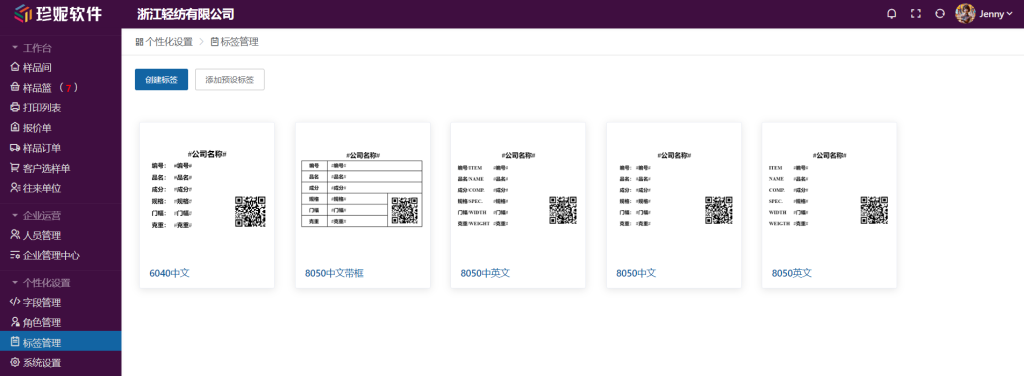
Preset labels
The system comes with several common label sizes preset. You can add and use them directly, or modify them as a starting point:
- 7050 (70mm × 50mm)
- 7550 (75mm × 50mm)
- 7050 English (English version)
- 7550 English (English version)
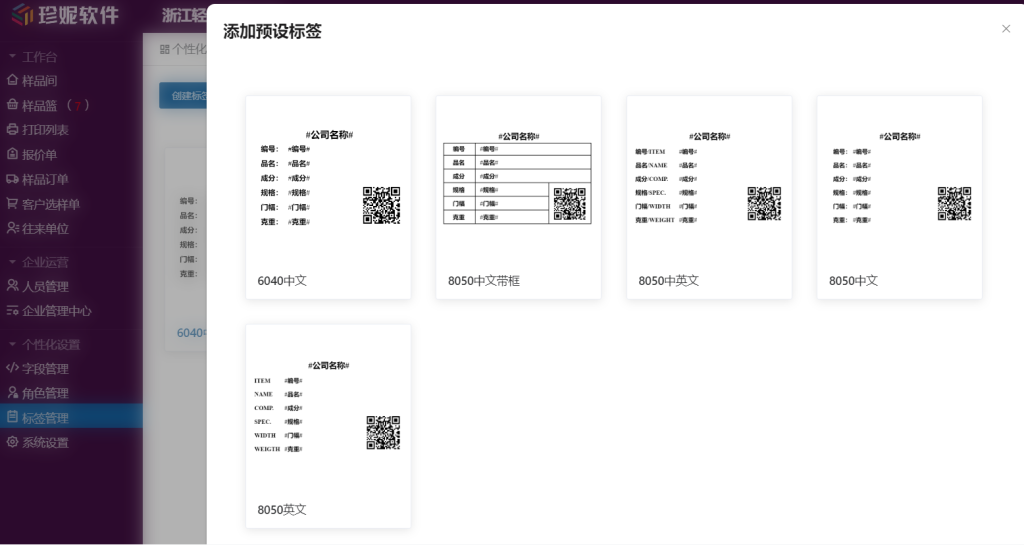
Fabric roll labels also have system presets: in "Label Management → Fabric Roll Label", click "Add Preset Label" to choose from 8 generic fabric roll label templates (multiple layouts in Chinese and English). The company name, item number, lot number, roll number and so on in the templates are all dynamic fields, so you can print right after adding one—or use it as a starting point for your own design.
Designing a label
Create a canvas
- Click the "Create Label" button
- Enter a label name
- Choose a label size (preset or custom width/height)
- Click Create to enter the visual design interface
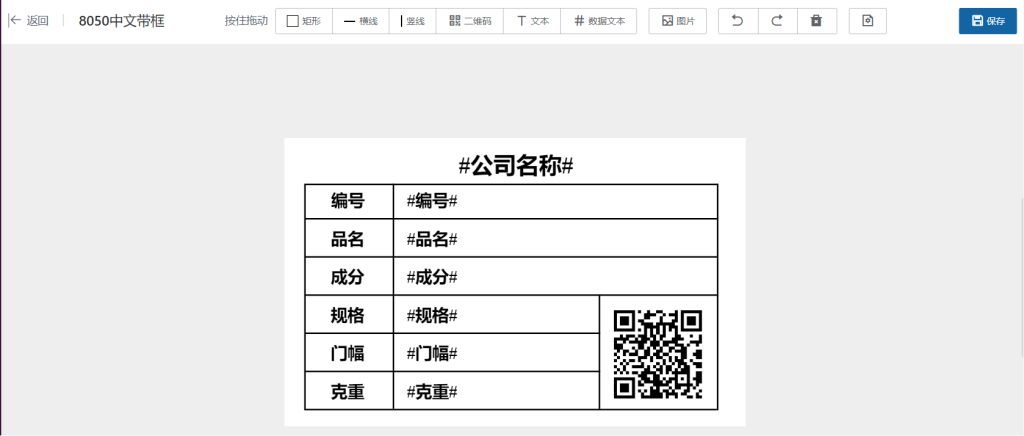
Design elements
| Element | Description |
|---|---|
| Rectangle / circle / vertical line / horizontal line | Borders and section dividers |
| QR code | Generated automatically; customers can scan it to jump to the sample selection page ("one item, one code") |
| Barcode | Code128 1D barcode generated at print time; fabric roll labels identify the real roll, while sample / color labels can bind fields such as item number (see below) |
| Auto field | Variables read automatically from sample information, filled in at print time |
| Text | Custom fixed text (such as company name or contact information) |
| Image | Upload your company logo, certification marks, etc. |
Barcode (Code128)
Since June 2026, labels support 1D barcodes that barcode scanners can read directly—ideal for scan-based stock-out / picking with fabric roll labels, or scanning hang tags by item number:
- Click "Barcode" in the toolbar and drag a barcode element onto the canvas (the editor shows a placeholder image; the real barcode is only generated at print time)
- For fabric roll labels, the barcode is bound to the real fabric-roll link by default, so scanning it locates the exact roll. The label editor no longer lets users switch that barcode to display fields such as roll number, avoiding wrong scans from duplicate, empty, or legacy roll numbers.
- For sample / color labels, the "Barcode content field" dropdown is still available. It defaults to the item number, and custom fields enabled in Field Management can be selected too.
- At print time the system generates a Code128 barcode from the field's actual value; both web printing and high-definition PDF printing are supported
Barcode content restrictions
Barcode content supports digits/letters only, up to 80 characters—if the content contains Chinese characters or is too long, printing skips that barcode (it's left blank rather than printing a broken code). Also, don't draw the barcode too narrow—if it's squeezed too thin, scanners may fail to read it.
Do a test scan before printing in bulk
Before a full batch run, print one physical label first and test it with your barcode scanner, confirming the barcode size and content are correct, before using it in bulk.
Available data variables
Sample labels: Item number, product name, English product name, composition, width, weight (GSM), specification, category, momme, heat-set, thickness, style number, application scenario, finishing, finished-product price (corresponding to "finished selling price" on the sample edit page), mark, label remarks, company name, print date
Color labels: all sample-label variables + color number, color name, color number + color name
Fabric roll labels: Item number, product name, English product name, composition, color number, color name, color number + color name, width, weight (GSM), style number, application scenario, company name, plus per-roll info—lot number, roll number, quantity, secondary-unit quantity, priced quantity, tolerance, sales order number, remarks, production date, mark color, net length, gross length, net weight, and gross weight—and print date. The barcode on a fabric roll label is bound by the system to the real fabric-roll link; you do not need to choose it from the field dropdown.
Custom fields can go on labels too
Custom fields enabled under "Personalization Settings → Field Management" (including optional system-provided fields such as "Dyeing & finishing", as well as fields you add yourself) automatically appear in the label editor's field dropdown, and are likewise replaced with the sample's actual values at print time.
Combining placeholders
Data variables can be combined—for example, placing #color number# #color name# together in a single text box—and are automatically replaced with the actual values at print time.
Position and size
- Each element can be set with coordinates (X/Y), rotation angle, and size
- Drag with the mouse for rough placement, then fine-tune with the coordinate values
- We recommend keeping the label canvas size identical to the actual label paper size
Font settings
After selecting a text element, you can set:
- Font family
- Font size
- Bold/italic
- Alignment (left/center/right)
Vertical text
With a text or auto field element selected, the style button group includes a "Vertical" button: click it and the element switches to vertical layout. The editor is WYSIWYG (characters stack vertically one by one), and the printed output uses the same vertical layout—handy for running an item number down the side of a label, for example.
Test-print vertical text first
How vertical text comes out on physical labels depends on the printer/driver. Print one label first to confirm that digits and English letters face the direction you expect, then print in bulk.
Keyboard shortcuts
| Shortcut | Function |
|---|---|
Ctrl + Z | Undo |
Ctrl + Y | Redo |
Ctrl + C | Copy |
Ctrl + V | Paste |
Printing labels
Printing from the sample room
- Check the samples you want to print in the sample list
- Open the sample basket
- Click the "Print Labels" button
- Enter the print list page
Print list operations
- Set the print quantity for each sample
- Switch the label template
- Quickly add any samples you missed
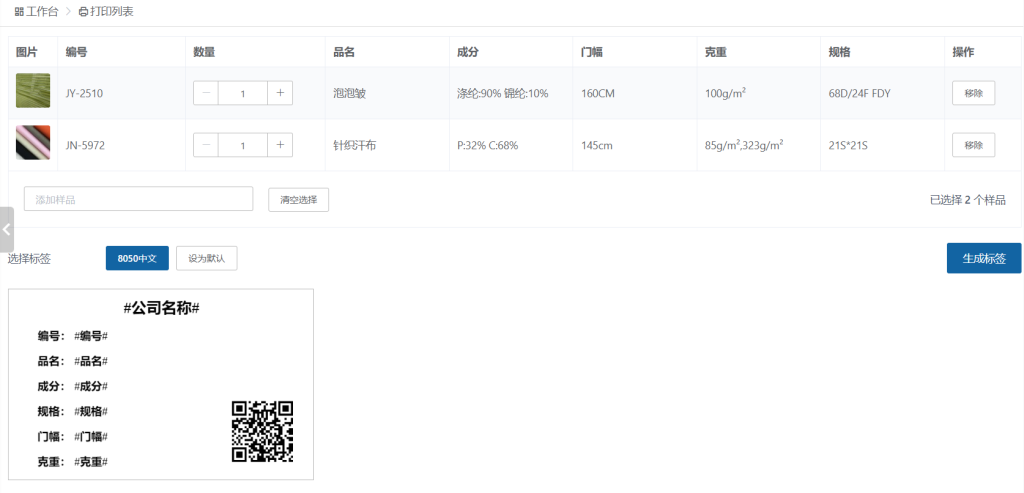
Generate and print
- Click the "Generate Labels" button; the print page opens in a new browser tab
- At the bottom of the page there are two buttons:
- "Print Directly"—uses the browser's print function
- "Generate PDF"—has the server render a high-definition PDF, which you then print. If the printout isn't sharp, try generating the PDF and printing that instead
- Before printing, confirm the paper size matches your label paper
"Generate PDF" occasionally says it's busy?
The high-definition PDF is rendered on the server, so during peak batch-printing periods you may see a "label printing is busy, please retry later" message—just wait a moment and click again.
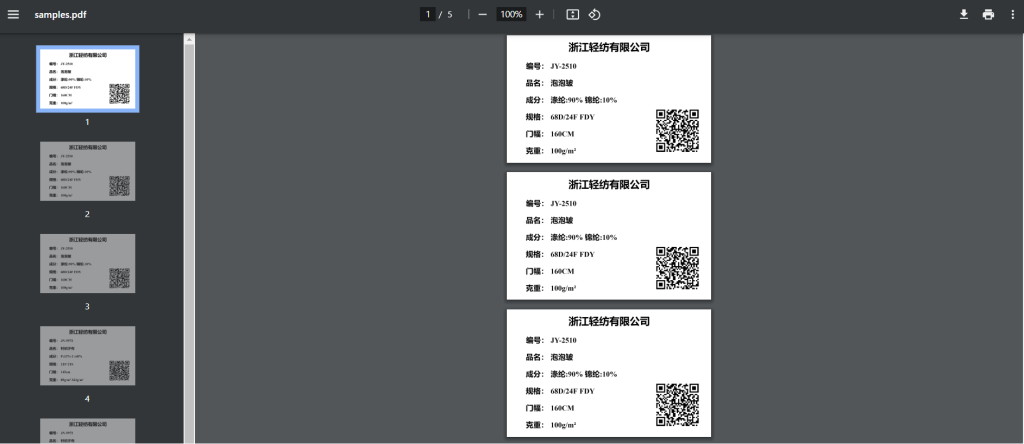
Printing roll barcode labels from a stock-in order
- While entering roll details (stock-in advanced mode), every roll has a print button next to it for printing that roll's fabric label directly
- In stock-in order detail → roll details:
- Click "Print all roll barcodes" to print one QR-coded label for every roll of that product in one go—stick them on the rolls for scan-based picking / stock-out
- Each roll also has its own print button, so you can reprint a single roll's label
Companies with "HD PDF labels" enabled
Once enabled, the print buttons in the stock-in roll-details entry screen open a high-definition PDF directly (in a new tab, for sharper output); without it, printing goes through the web print page. Either way, the "Generate PDF" button on the web print page is available to everyone. To enable HD PDF labels, contact support.
Mobile printing
- iOS app: prints sample labels via Bluetooth or network (TCP:9100); network printing has been officially available since 1.0.7
- Android app: Bluetooth label printing is still being debugged and not recommended for now (the print entry will be temporarily closed in an upcoming release)—please print from a computer or an iOS device for the time being
- Jenny PDA: fabric roll label printing is rolling out; contact support to confirm printer-model compatibility before using it
The supported printer model for mobile printing is the Dascom TL-332 / TL-333.
👉 For the full per-device differences, connection steps and printer models, see Bluetooth / Mobile Label Printing.
Printer compatibility
On the computer, the software supports the following mainstream thermal label printer brands (USB / network / driver):
- HPRT
- Gainscha
- Deli
- Zebra
- TSC
For phone-app / PDA mobile printing, use the Dascom TL-332 / TL-333
The list above is for computer printers. Direct mobile printing only supports the Dascom TL-332 / TL-333—the iOS app supports network printing (TCP:9100), while the Android app's Bluetooth print entry is not yet open (still being debugged). See Bluetooth / Mobile Label Printing.
For detailed printer installation and paper setup, see:
- Thermal Label Printer Setup — Windows
- Mac Printing Setup — Mac
- Printer Driver Downloads — driver downloads by brand