
Development (Sampling Management / Pattern Library)
Development (the 「开发」 menu) is a new module launched in June 2026. It separates fabric development sampling from bulk production:
- Development stage: lab dips / sampling / customer confirmation — fast-paced, with lots of revision rounds. Track every round with a sampling order.
- Bulk stage: once a sample passes, convert it to a bulk order in one click. This creates a sales order in Production Orders, and the work moves into formal production tracking.
The Finished Products entries — sample garments, shoes/bags/accessories, home textiles — have also moved under the Development menu (the features themselves are unchanged; see Finished Products).
Where to Find It
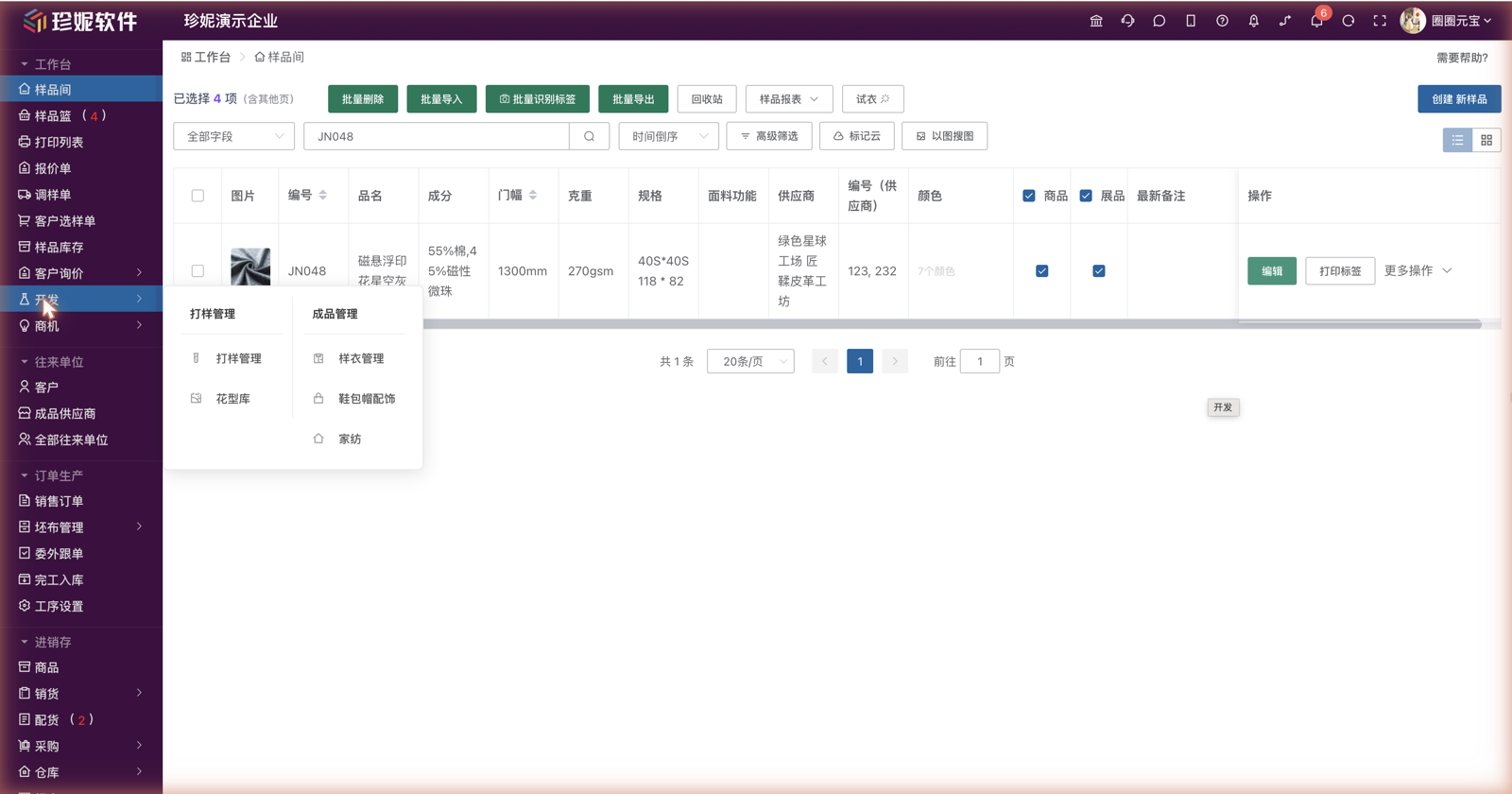
Left menu, Workbench (工作台) group → Development (开发), located above Opportunities. Clicking "Development" takes you straight to Sampling Management; hovering over it expands two columns:
- Sampling Management: Sampling Management / Pattern Library
- Finished Products: Sample Garments / Shoes, Bags & Accessories / Home Textiles
By default the Development menu is only available to the company owner and admins. For other staff, tick the "Development" (开发) permission for their role under "Personalization Settings → Role Management" (see Permissions at the end).
Sampling Management
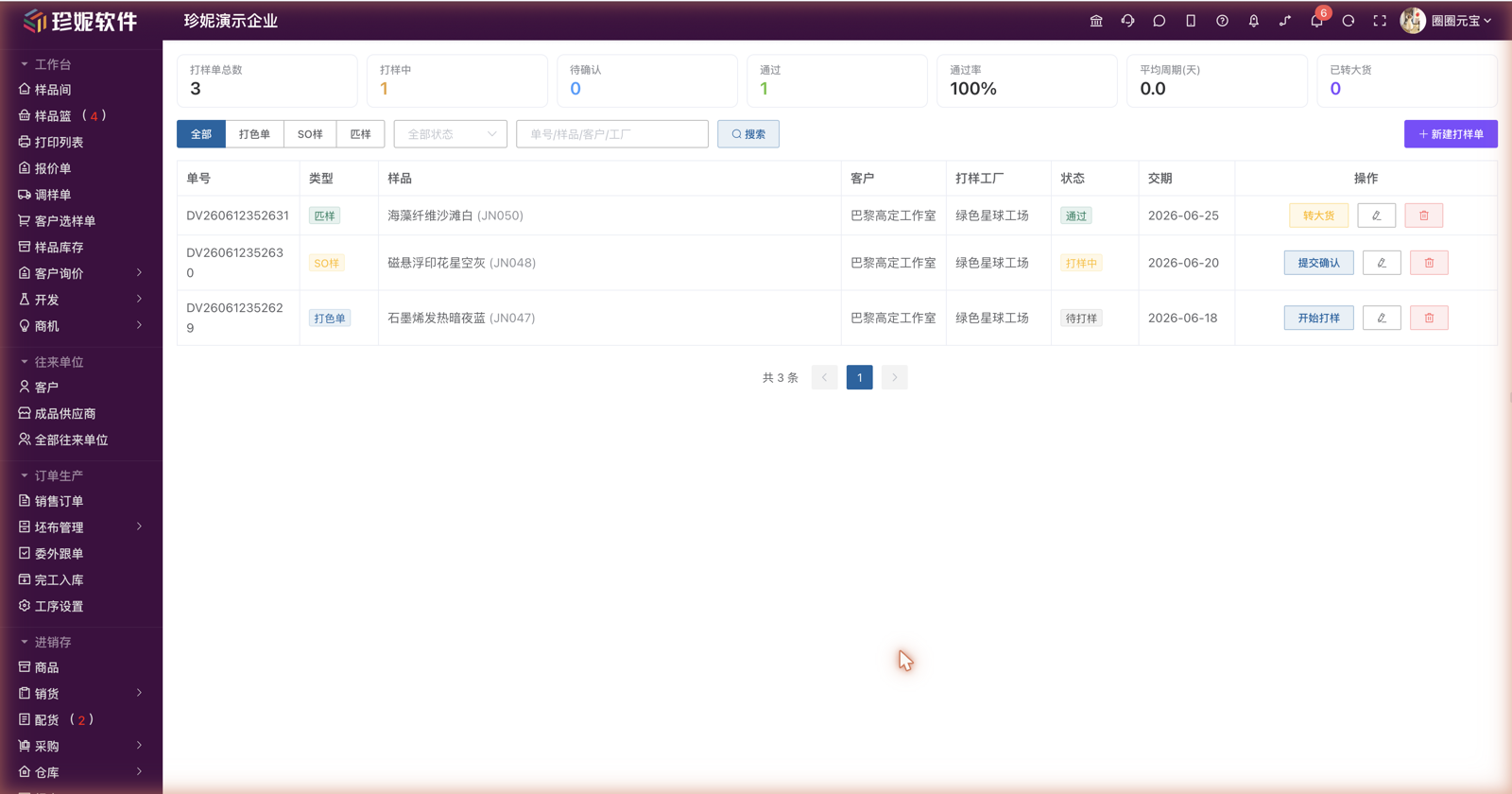
Go to "Development → Sampling Management" — one list manages all of your sampling orders.
Three Sampling Order Types
| Type | When to use it | Type-specific fields |
|---|---|---|
| Lab-dip order (打色单, solid-color matching) | Dyeing a solid-color fabric to match a color card or a customer sample | Color reference source (color card no. / customer sample / computer color matching), dye recipe, color-matching light source (D65/TL84/CWF) |
| Strike-off / SO sample (SO样, hand-screened print sample) | Small print sample to confirm the pattern and colors of a printed fabric | Pattern number (linked to the Pattern Library), number of colors, method (hand screen / flat screen / digital) |
| Sample yardage (匹样, pre-production small batch) | Small trial run to validate production before bulk | Piece length / quantity, process route, acceptance criteria |
At the top of the list you can filter by type (All / lab-dip / SO sample / sample yardage) and by status; the search box matches order number / sample / customer / mill keywords.
Creating a Sampling Order
Click 新建打样单 (New Sampling Order) at the top right:
- Sampling type: lab-dip / SO sample / sample yardage (this determines the type-specific fields below)
- Sample name (required) / sample code / composition / width / weight
- Customer (the customer the development is for) / sampling mill
- Type-specific fields (see the table above)
- Sampling requirements: color / pattern / process / fastness requirements, etc.
- Delivery date / notes
The order number is generated automatically in the format DV + 6-digit date + 6-digit sequence, e.g. DV260609000001 = a sampling order created on June 9, 2026.
The "pattern number" field on an SO sample supports autocomplete: pick an existing pattern straight from the Pattern Library, or type it in manually.
Status Flow
Sampling orders move along a fixed status flow, advanced with one click in the list's action column:
待打样 (to sample) →「开始打样」(start sampling) → 打样中 (sampling) →「提交确认」(submit for confirmation) → 待确认 (awaiting confirmation) →「通过」(pass) /「打回」(reject)- When an order is awaiting confirmation (待确认), you can click 通过 (Pass) or 打回 (Reject)
- Clicking 打回 (Reject) bumps the version number by 1 automatically — the list shows v2, v3… next to the status, so you can see at a glance how many rounds it has taken. A rejected order can be sent back into sampling with 重新打样 (Re-sample)
- You can also change the status directly from the "Status" dropdown when editing a sampling order
Statistics Cards
The statistics cards at the top of the list show your company's overall sampling picture: total sampling orders / in sampling / awaiting confirmation / passed / pass rate / average cycle (days) / converted to bulk.
Converting to a Bulk Order
Once a sampling order has passed, a 转大货 (Convert to Bulk) button appears in the action column:
- Click 转大货 (Convert to Bulk) — you're taken to the new sales order page in Production Orders, with the sample name / code / composition / width / weight filled in automatically, and the source sampling order number, customer, and sampling requirements written into the order notes
- Pick the customer, fill in the quantity / unit price, and save
- On a successful save the sampling order is updated automatically: the list shows a green 已转大货→ (Converted to bulk →) link that jumps straight to the corresponding sales order detail page
Notes:
- Converting to bulk requires the Production Orders app to be enabled (App Market)
- A sampling order can only be converted to bulk once; a repeat attempt is blocked with the message "该打样单已转大货,不能重复关联" (this sampling order has already been converted to bulk and cannot be linked again)
Pattern Library
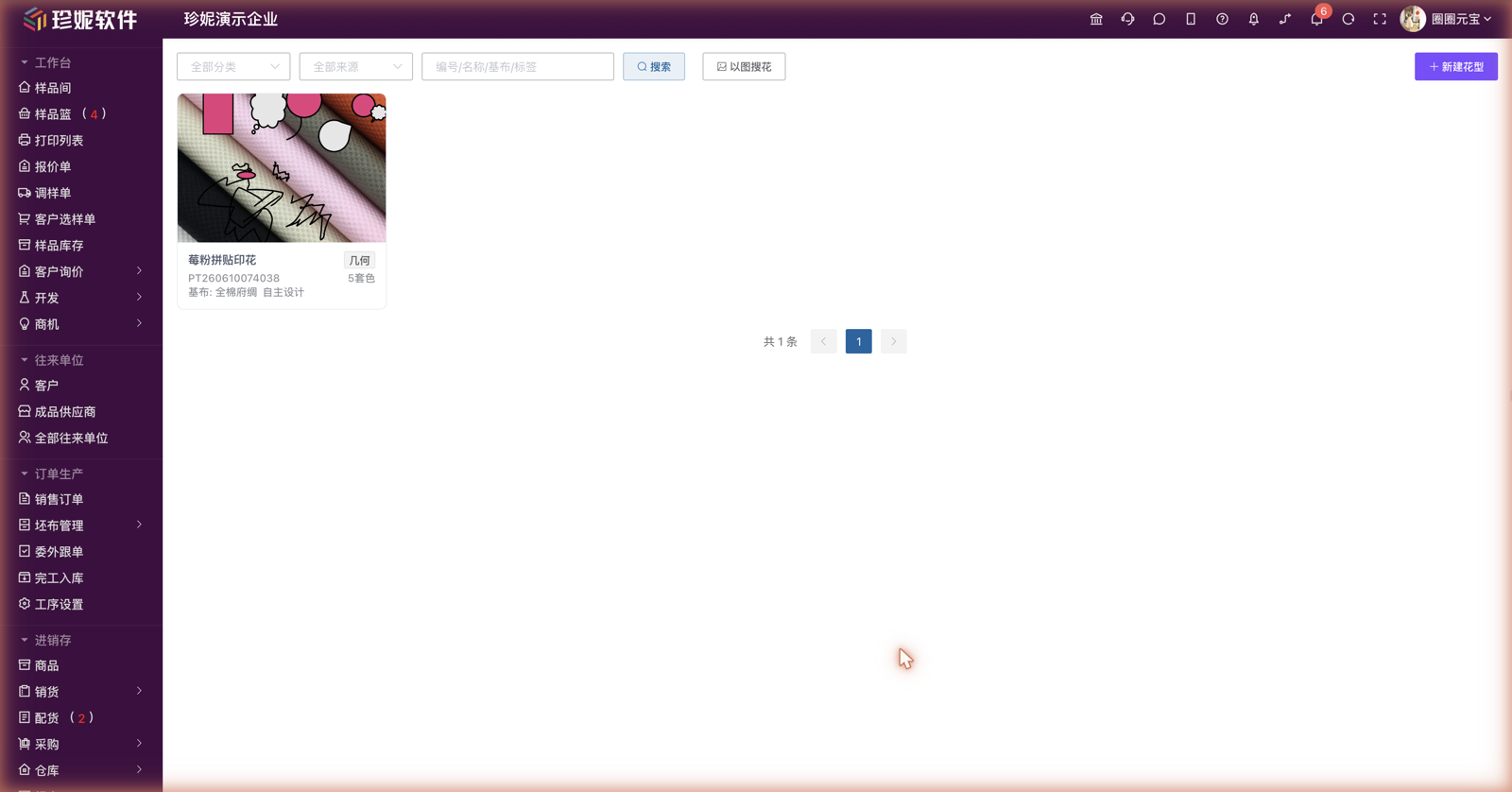
Go to "Development → Pattern Library" to manage your printed-pattern assets as image cards. A single pattern can have multiple colorways and be used on multiple base fabrics, and is managed separately from sample colors — ideal for consolidating in-house designs, purchased artwork, and customer-supplied patterns into a single company asset library.
Creating a Pattern
Click 新建花型 (New Pattern) at the top right:
- Pattern name (required)
- Pattern number: leave it blank to auto-generate (format PT + 6-digit date + 6-digit sequence), or fill in your own
- Pattern images: a main image plus extra images (details / colorway versions), max 10 MB per image
- Category: floral / geometric / animal / stripes & checks / cartoon / ethnic / abstract / other (custom categories can be typed in too)
- Number of colors / suitable base fabrics (e.g. 30D chiffon / cotton poplin)
- Source: in-house design / purchased artwork / customer-supplied
- Tags (comma-separated, e.g. "fresh, summer") / notes
The list can be filtered by category and source, and the search box matches number / name / base fabric / tag. Click the image on a card to zoom in; click anywhere else on the card to edit it; the 删除 (Delete) button sits at the bottom left of the edit dialog.
Searching Patterns by Image
At the top of the Pattern Library there is a 以图搜花 (Search Patterns by Image) button: upload a pattern image to find similar patterns within your own company's Pattern Library (it searches Pattern Library images only — sample photos are not mixed in). This feature shares the same activation as Image Search for samples — if Image Search is enabled on the sample side, the Pattern Library can use it right away; if not, the button guides you to enable it in the App Market. See Image Search for details.
Link with Sampling
The "pattern number" field on SO sample sampling orders is linked to the Pattern Library: when creating an SO sample, typing suggests the numbers and names already in the library — select one and it fills in.
Order Production links with the Pattern Library too: the 「花型花号」 (pattern & number) column in the order page's color details autocompletes from the Pattern Library as you type (suggestions appear as "pattern name + number" combos — select one and it fills back in, or just type it by hand), and the value is carried into the production plan sheet and Excel exports automatically; see Production Order Management.
Permissions
"Development" is a standalone permission point, found in the permission checkboxes under "Personalization Settings → Role Management":
- Company owner: always has it, no configuration needed
- Admins: enabled by default
- Other roles: don't see Sampling Management / Pattern Library by default — tick "Development" (开发) on the role to grant access
- Staff who only have the "Sample Garments" (样衣管理) permission can still see the Development menu and use the Finished Products entries inside it, but the Sampling Management / Pattern Library data APIs remain controlled by the "Development" permission
Related Articles
- Finished Products — Sample garments / shoes, bags & accessories / home textiles (also under the Development menu)
- Production Order Management — Production tracking after a sample is converted to bulk
- Image Search — The image-search capability shared by samples and the Pattern Library
- Staff and Role Management — Ticking the "Development" permission for a role