
Sample Basket
Overview
The Sample Basket is the area for performing batch operations on multiple samples. It supports batch label printing, creating quotations, creating sample dispatch orders, sharing sample collections, and more.
1. Adding to the Sample Basket
Check a sample in the Sample Library to add it to the Sample Basket; unchecking it removes it. The Sample Basket icon in the left menu shows the number of items selected.
Key features:
- You can remove individual samples within the Sample Basket
- The search box at the bottom left lets you quickly find and add samples by keyword
2. Batch Operations
1. Print Labels
Click the Print Labels button, and the selected samples will go to the print list page.
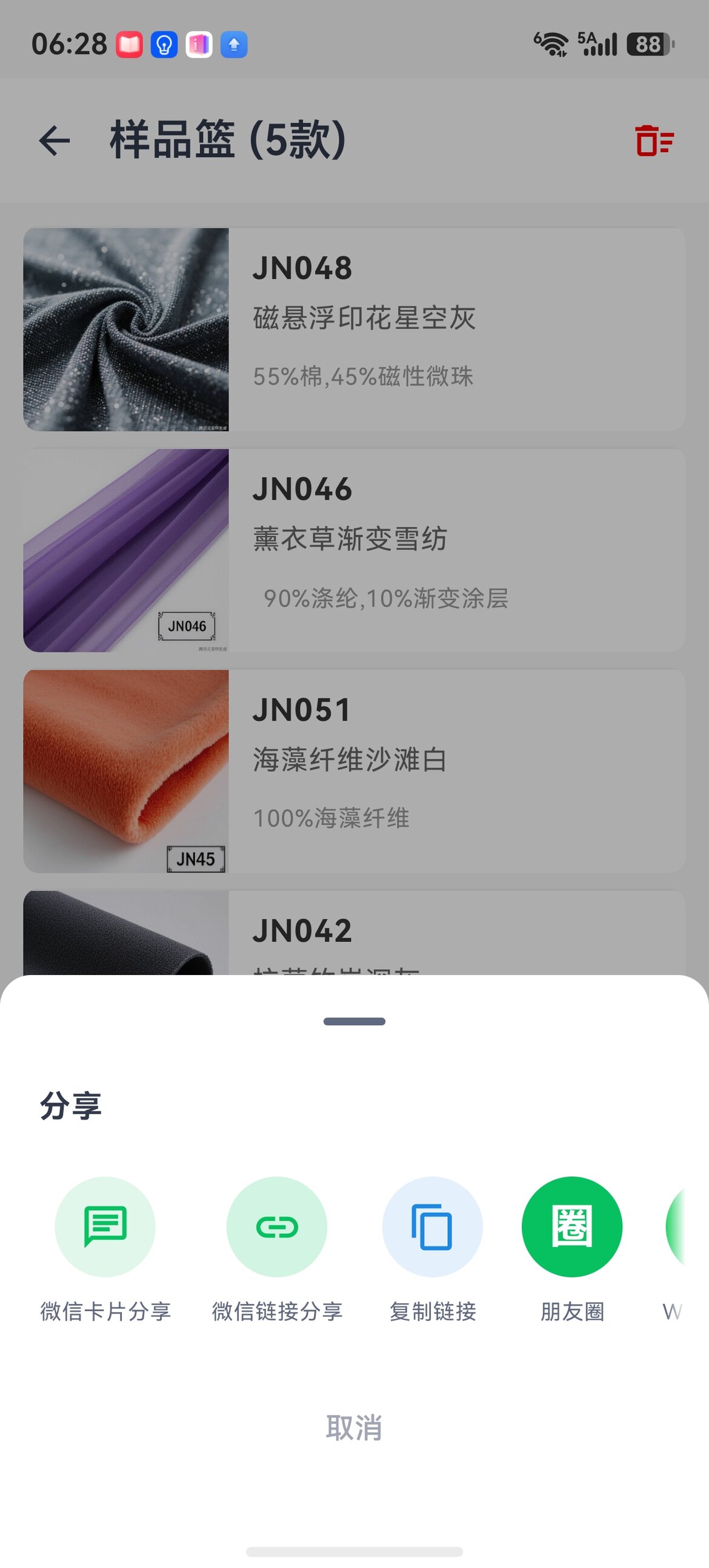
2. Share a Sample Collection
- Get a share QR code and share link for multiple samples
- The share page adapts to both mobile and desktop
- Recipients can view the information for multiple samples on a single page
- You can configure which fields to share in the "Share" column of Field Management
3. Create a Quotation
Use the samples in the Sample Basket to quickly generate a quotation, bringing the sample information into the new quotation page with one click.
4. Create a Sample Dispatch Order
The workflow is the same as creating a quotation; you can bring the samples in the Sample Basket into the new sample dispatch order page with one click.
5. Export a Selection Catalog (PDF / PPT)
Click 「导出选样册」(Export Selection Catalog) in the toolbar and choose "Export PDF" or "Export PPT" to turn the samples in the Sample Basket into a customer-facing selection catalog in one click:
- Layout: A4 portrait. A cover page (company name + a 「新品选样册」("New Sample Selection Catalog") title + date + style count), followed by one page per sample: a large image plus code / name / composition / width / weight / spec (empty fields are skipped automatically)
- PDF is best for sending straight to customers; PPT can be edited afterwards (change text, swap images, add pages)
- The catalog is generated locally in your browser, with up to 50 styles per export; with many styles generation takes a moment, and the page shows progress
- Each style's image is taken automatically from the sample's cover (internal-gallery cover first, then the public cover)
TIP
Exporting to PPT requires an internet connection to load the generation component—choose PDF in offline environments. After exporting, review the layout yourself before sending it to customers.
6. Batch Editing
Click 「批量编辑」(Batch Edit) to modify the fields of multiple basket samples in a single table, with undo support and one-time saving. See Sample Management → Batch Editing.