Creating a Jenny Software Desktop Shortcut
Overview
To make accessing Jenny Software more convenient, this guide explains how to create a shortcut on your computer desktop.
Tip for Mac users: You can simply drag the URL from the browser's address bar to the Dock to create a quick entry. You can also click the menu in the top-right of Chrome and choose "More Tools → Create Shortcut" to generate a desktop shortcut.
Steps to create a shortcut
Step 1: Create a new shortcut
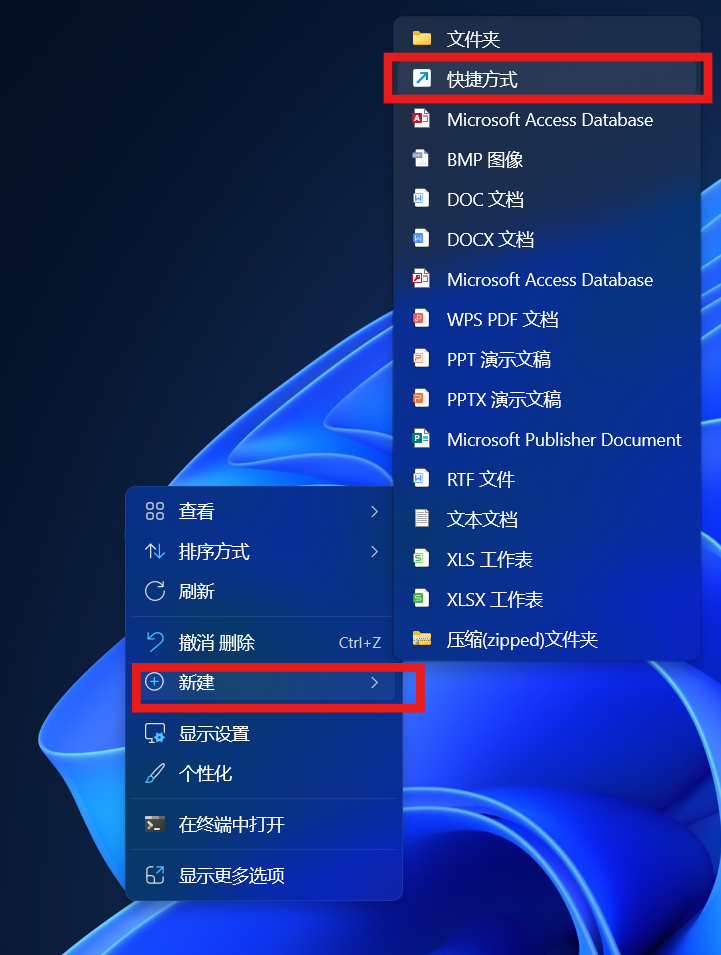
Right-click on the computer desktop and choose the option to create a new shortcut.
Step 2: Enter the URL
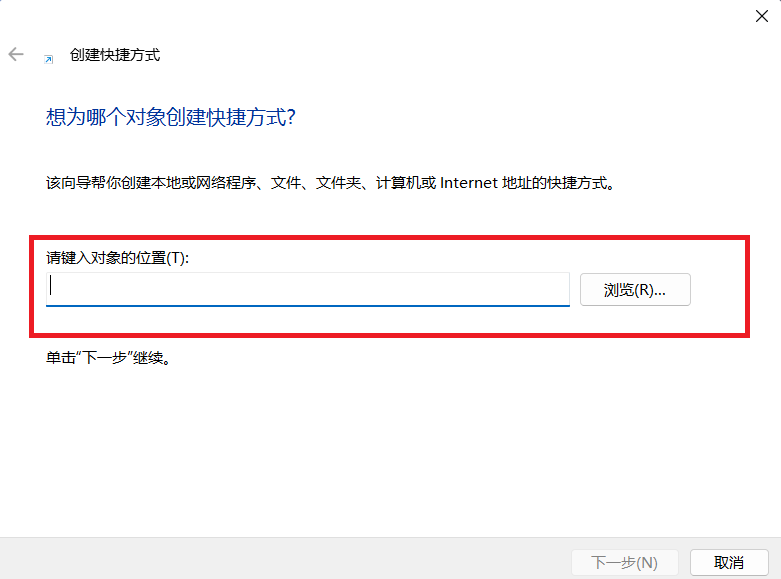
In the dialog, enter the Jenny Software URL. There are two options:
Official site URL: https://jenny.cn/
- Pro: jumps straight to the official site
- Con: requires logging in each time you click
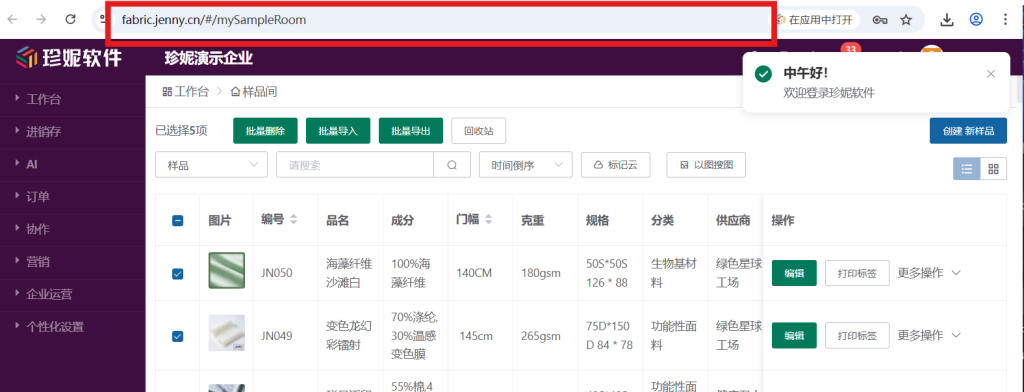
The sample-room URL after logging in
- Pro: skips repeated logins, more convenient
- You need to copy the post-login URL yourself
Step 3: Name the shortcut
After entering the URL, click Next and change the shortcut name to "Jenny Software".
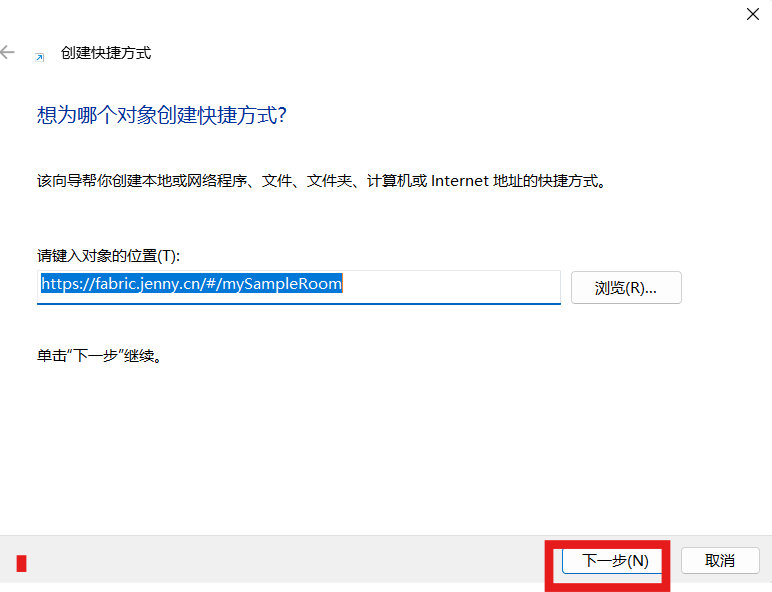
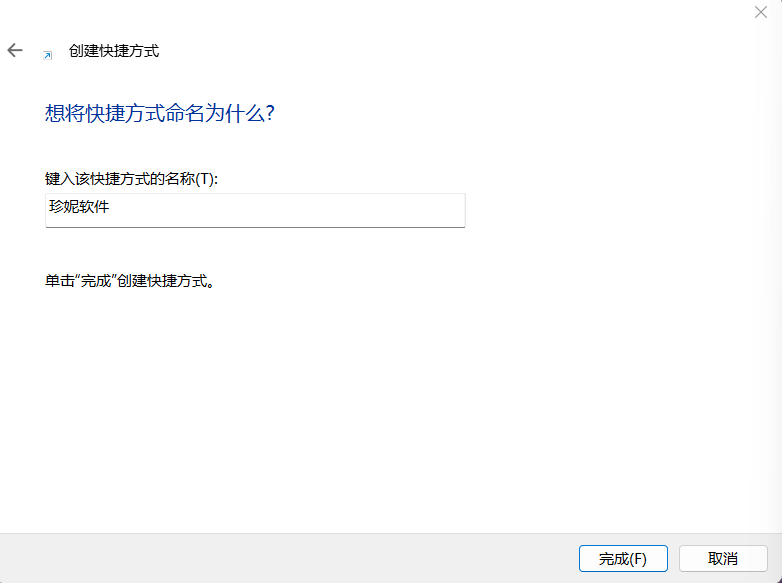
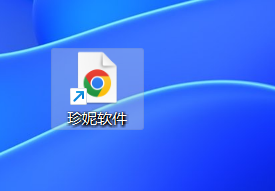
Once done, you can open Jenny Software directly from the desktop.
Setting the icon
The default shortcut icon isn't very attractive; you can change it with the following steps.
Steps to change the icon
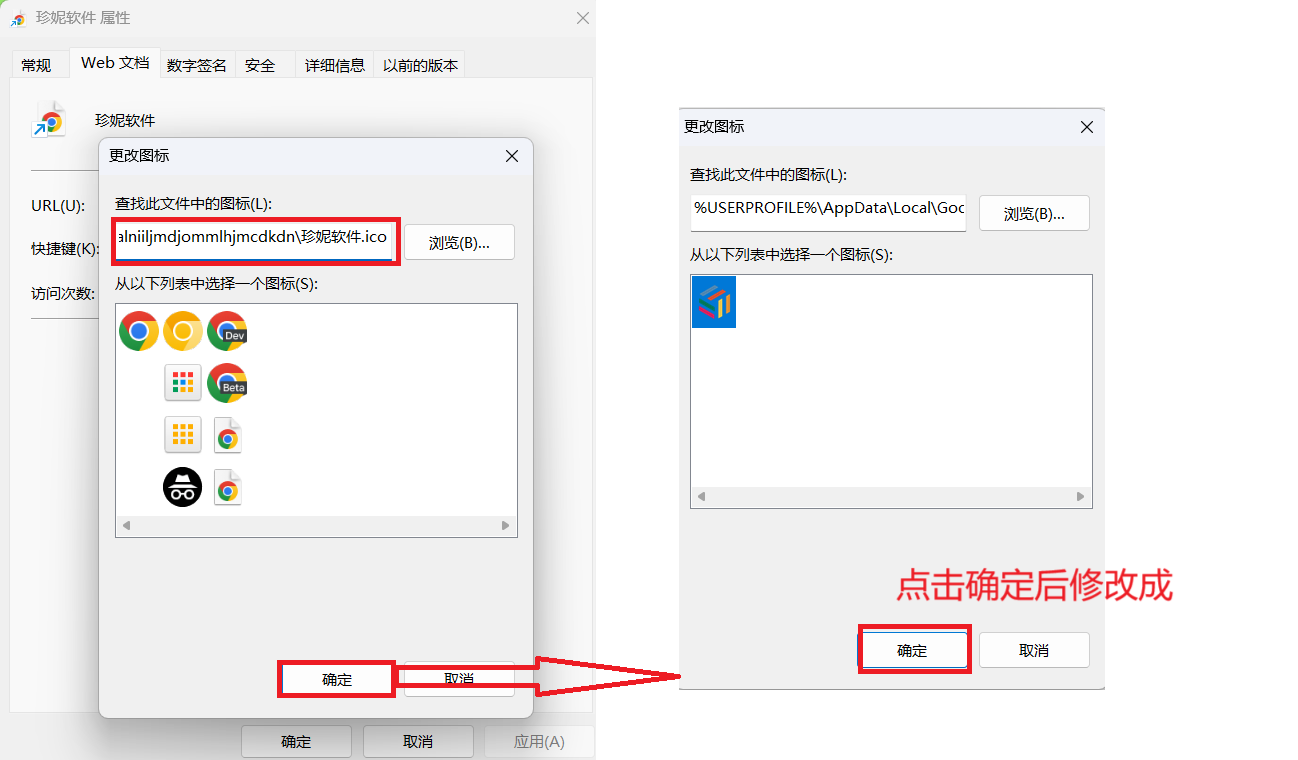
Right-click the Jenny Software shortcut icon, choose Properties, and find the "Change Icon" button in the Web Document tab.
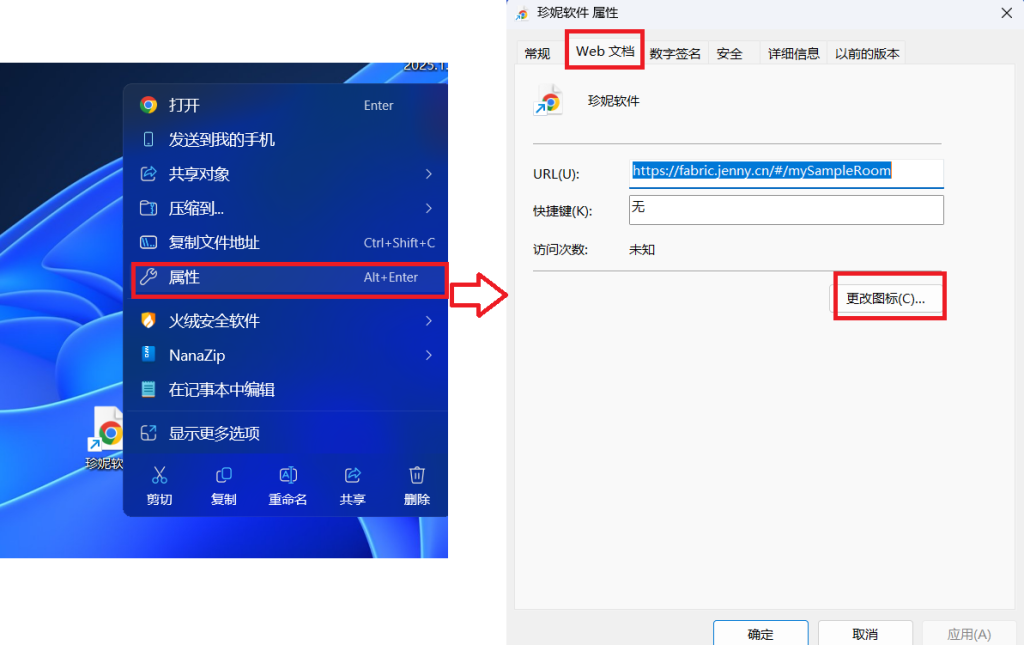
Change the path in the box to something like the following:
%USERPROFILE%\AppData\Local\Google\Chrome\User Data\Default\Web Applications\_crx_gcplhnobffalniiljmdjommlhjmcdkdn\珍妮软件.icoNote: This path may vary by Chrome version. If you can't find the corresponding file, try searching for "珍妮软件.ico" under the
%USERPROFILE%\AppData\Local\Google\Chrome\User Datadirectory.
Setting the browser
Change the shortcut's default browser to your preferred browser.
Steps
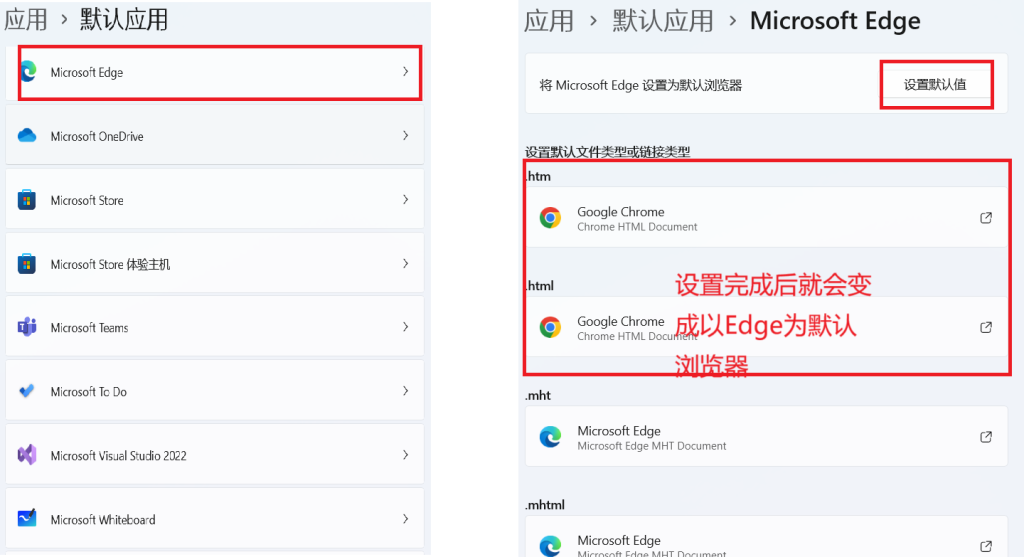
Go to the Apps section in Windows Settings and find the Default Apps option.
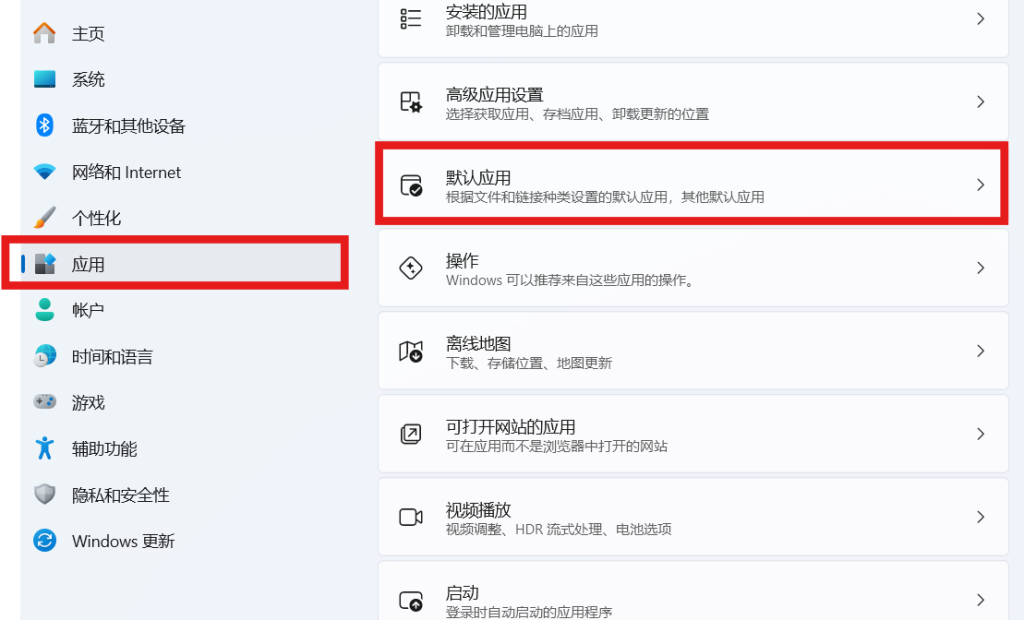
Using the Edge browser as an example, select Edge and set it as the default browser.