
Web Showroom Overview
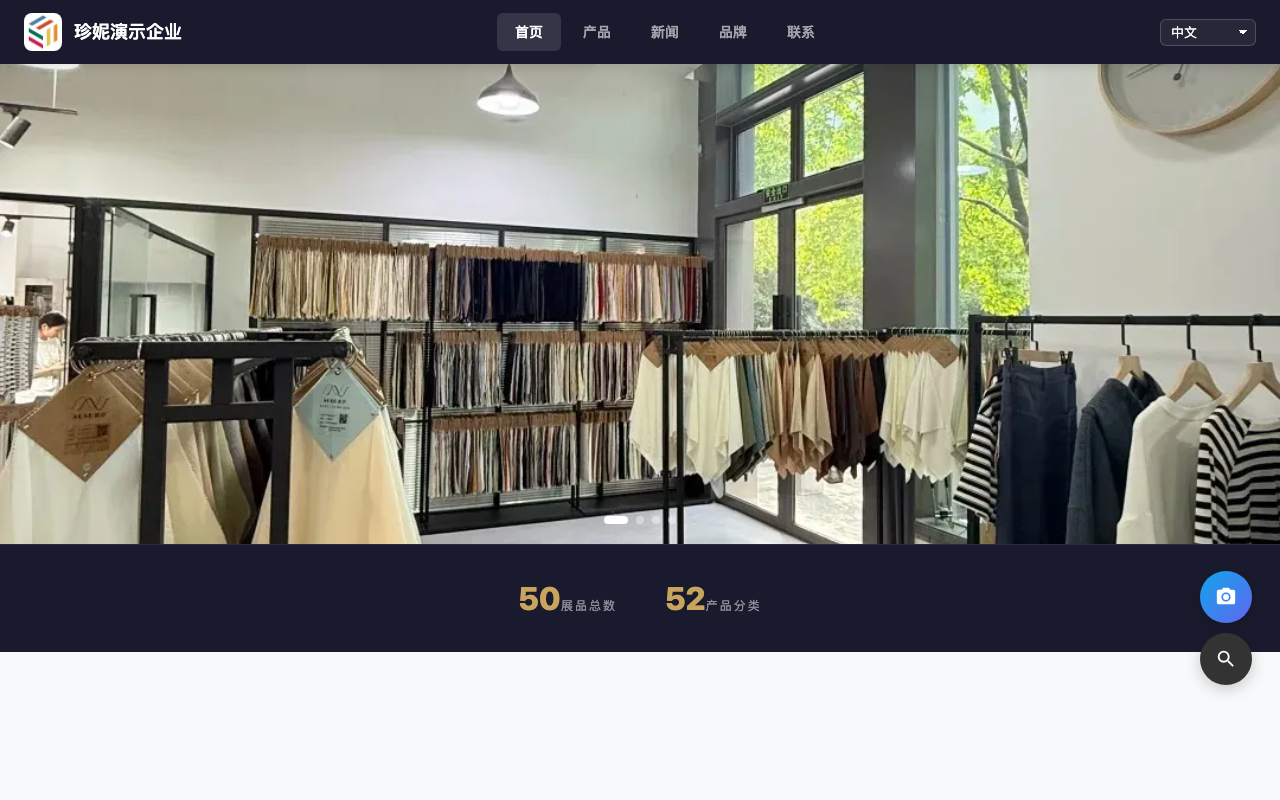
Jenny Software lets you generate a web showroom with one click. The showroom is your company's public face — it covers product display, brand introduction, contact details, news, and more. Configure it once and it stays in sync across the PC web showroom / mobile H5 showroom / WeChat Mini-Program showroom.
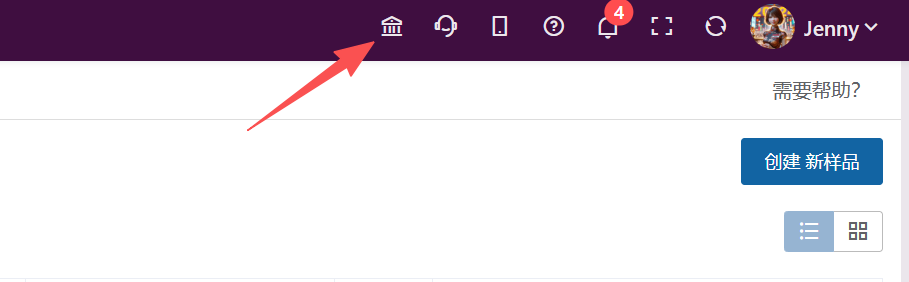
How to access
- View the showroom: the house icon in the top-right corner
- Showroom settings: left menu → Marketing → Showroom Settings
- Showpiece management: left menu → Marketing → Showpiece Management
Key features
1. Multilingual support (17 languages)
A language switcher dropdown sits in the top-right of the showroom. Visitors can switch between 17 languages, and the menus, buttons, and prompts are all localized:
Simplified Chinese / English / Russian / Korean / French / Vietnamese / Italian / Turkish / Japanese / German / Spanish / Portuguese / Arabic / Thai / Bengali / Indonesian / Traditional Chinese
- Arabic is automatically laid out right-to-left
- A visitor's language choice is remembered and restored on the next visit
- Sample names, composition, width, weight, spec, and similar fields can carry multilingual content; languages left blank fall back to the system's default data
- It's fully aligned with the multilingual templates for quotations, sample dispatch orders, and selection orders, so overseas customers get one consistent language experience
2. 18 templates (switch with one click)
In showroom settings you can preview and switch between 18 different template styles, ranging from minimalist to ornate:
- Default (business blue-gray)
- Breeze (light-blue fresh) / Turquoise (teal natural) / Plain Gauze (light minimalist)
- Brocade (dark and bold) / Warp & Weft (two-column magazine) / Cloud Ink (dark tech)
- Morning Dew (purple gradient) / Warm Sun (orange-gold warm) / Galaxy (deep-blue starry)
- Bamboo Charm (oriental flavor) / White Porcelain (pure-white minimalist) / Obsidian (all-black glow)
- Glaze (frosted-glass translucent) / Azure (ocean-blue, for export trade) / Vermilion (red and solemn)
- Ink Wash (ink-wash dark) / Neon (gradient neon)
Steps:
- Go to "Showroom Settings → Showroom Templates"
- Browse the template thumbnails
- Click "Preview" to see the result with your real data
- Once satisfied, click "Apply this template" to go live
The default template is free to use. Some theme templates may require a separate purchase before they can be enabled, and you can switch back anytime.
3. SEO optimization (search-engine friendly)
Showroom pages are fully optimized for search engines, so customers can find your products via Google / Baidu:
- A dedicated URL for every product (with a product-name slug):
/showroom/product/levitation-print-jn048 - A dedicated page for every category:
/showroom/category/all-cotton - Aggregated sitemap: automatically generated and ready to submit to search engines for indexing
- Page title / description automatically generated from the product / category content
- Support for configuring Baidu Webmaster / Google Search Console verification
- Support for embedding Google Analytics / Baidu Tongji tracking code
4. News center
The top menu of the showroom can enable a standalone "News" group for publishing company updates, product news, and industry news:
| Category | Use |
|---|---|
| Company News | Company news, trade-show info, personnel changes |
| Product News | New product launches, best-seller recommendations |
| Industry News | Industry trends, technical insights |
Each news item:
- Includes a title, cover image, rich-text body, publish date, and category
- Automatically gets a dedicated URL (with a slug) that can be indexed by search engines on its own
- Is crawlable by search engines, boosting the overall authority of your showroom
5. Custom subdomain
Each company can use a dedicated subdomain to access its showroom: yourbrand.jenny.cn
- Customers only need to remember your brand's domain instead of a complex link
- The subdomain can be bound / unbound by yourself in showroom settings
- Old links (based on companyKey) keep working
6. Product display
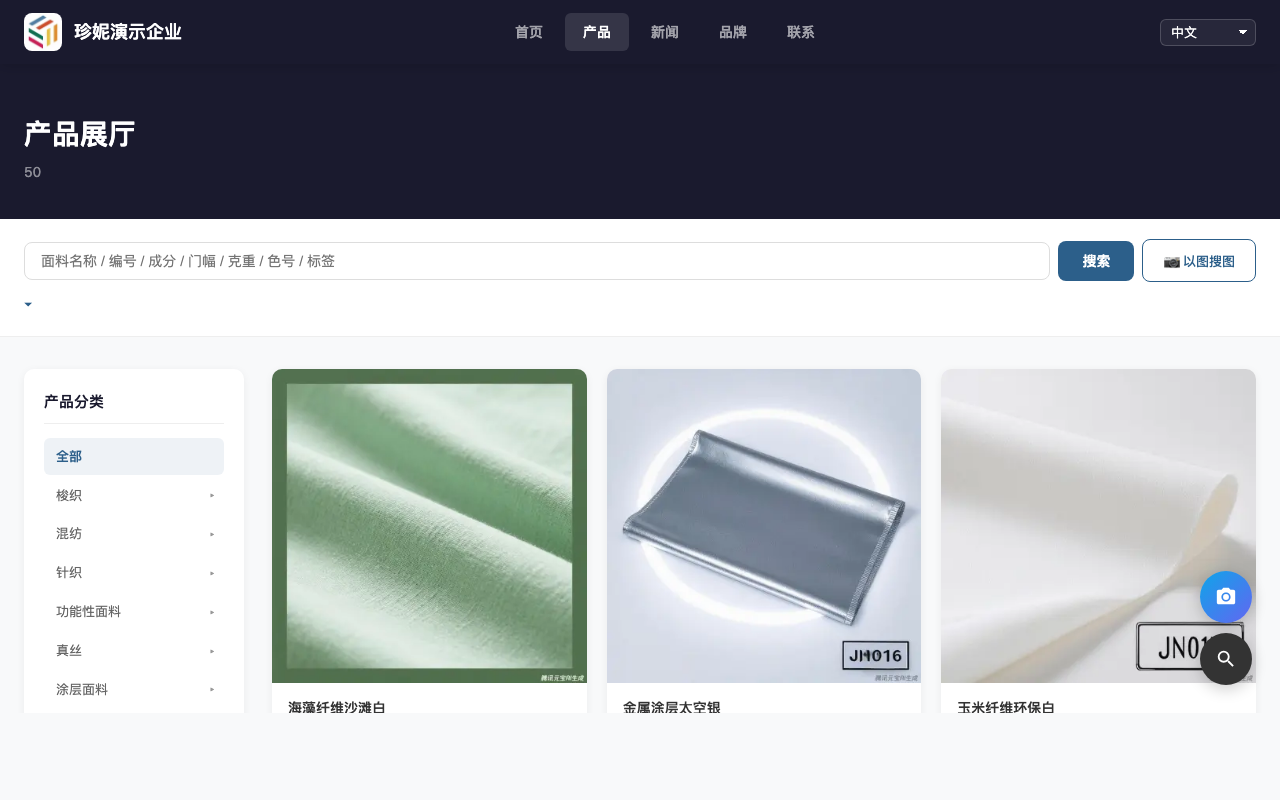
Three-level category tree
- The left menu supports up to 3 category levels, synced automatically from sample categories
- Displayed as horizontal scrolling on mobile
- Click a category to filter directly
Product search
- Top search box: covers fabric name / code / composition / width / weight / color code / tags
- Advanced filters: refine by category / sort order
- Image search: a visitor can photograph a piece of fabric or upload an image, and similar products are matched automatically
- Whether this is open to visitors depends on the public-scope settings of the sample image library (both the public and internal image libraries support image search)
Product detail page
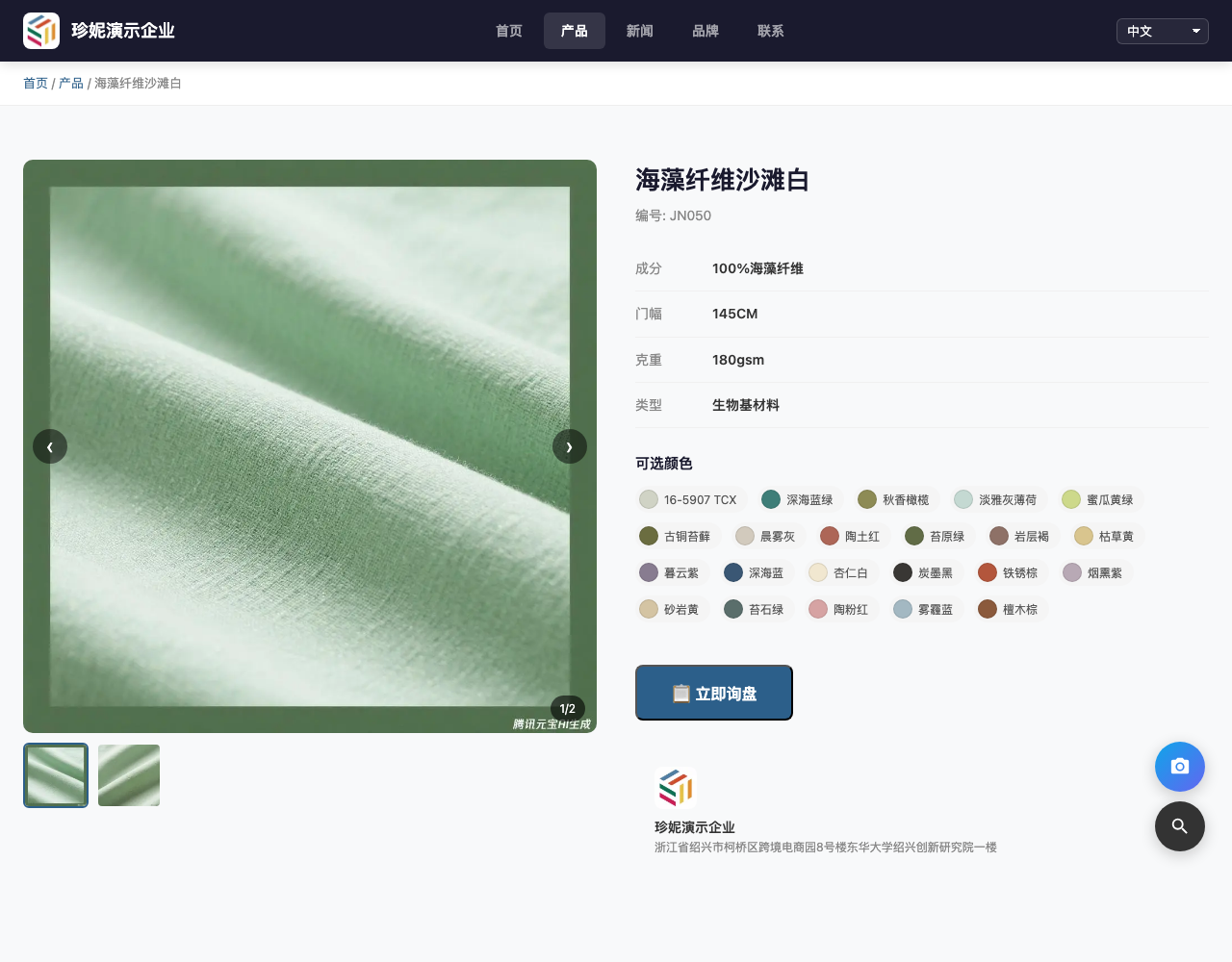
- Multi-image gallery: touch swipe + mouse drag + synced thumbnails
- Click an image to enlarge full-screen (with ESC / arrow-key navigation)
- Automatically shows composition / width / weight / type and other parameters
- Optional color swatches (shown by SKU)
- One-click inquiry (your sales rep is notified in real time once submitted)
7. Home page display
The showroom home page can be configured with:
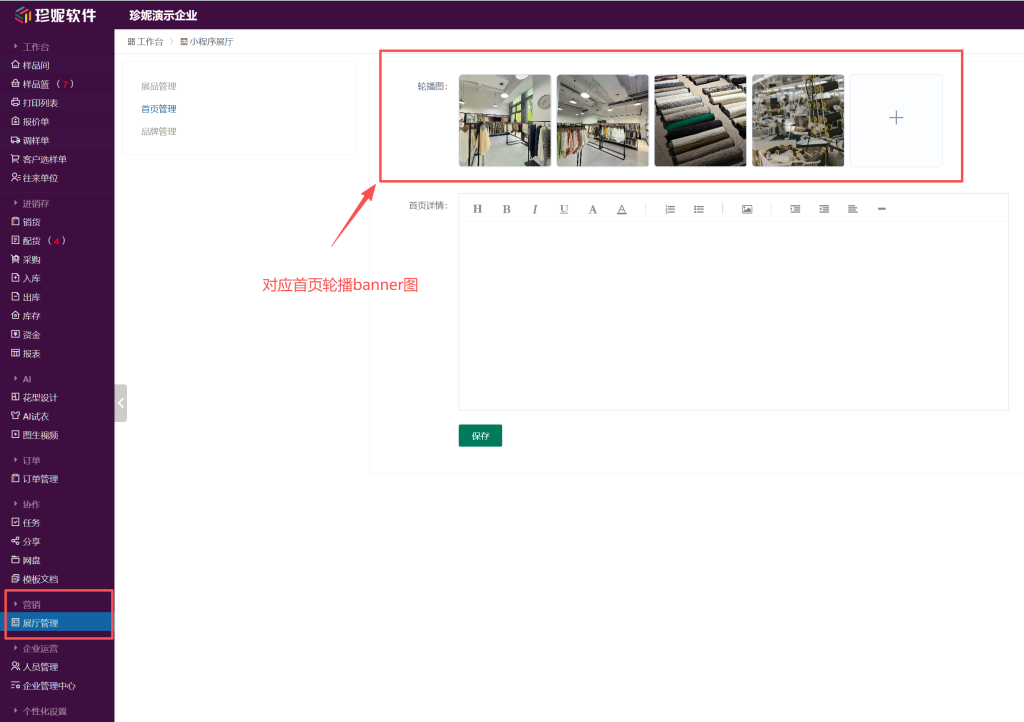
- Banner carousel: upload corporate image photos, with large images on PC and responsive sizing on mobile
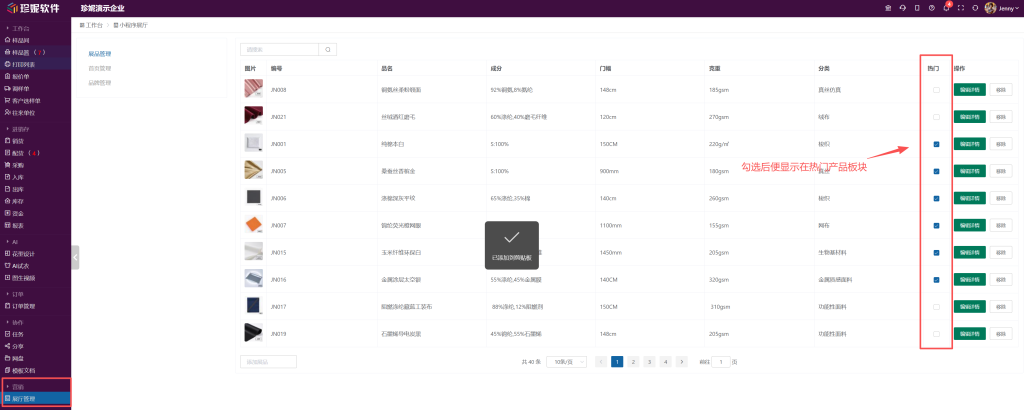
- Featured products: select the products you want to highlight on the home page
- Home rich-text introduction (home_description): supports HTML rich text for telling your company story and highlighting features
- Stats bar: total showpiece count and category count are displayed automatically
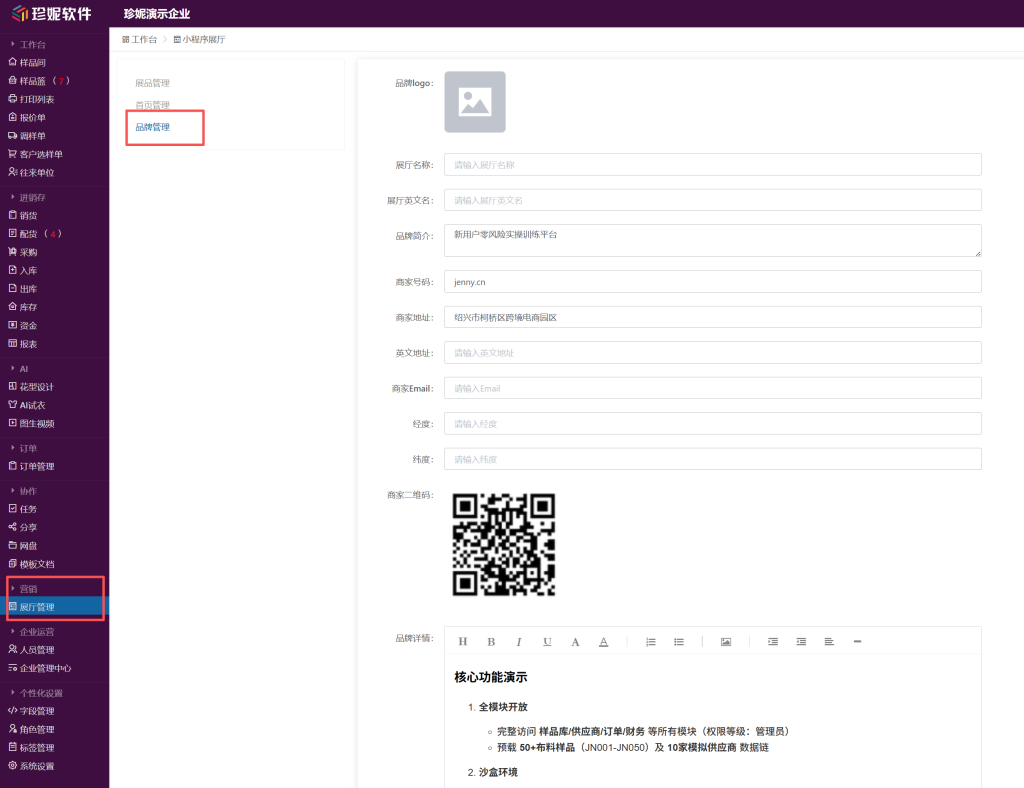
- About Us summary: pulled automatically from your brand settings, truncated to 200 characters with a "Learn more" link
8. Mobile optimization
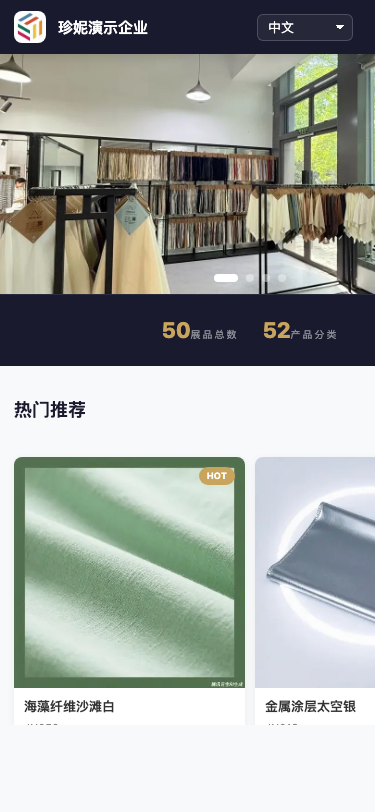
Showroom pages are fully responsive and adapt to the screen automatically when opened in a mobile browser:
- Drawer-style top navigation
- Touch-swipeable banner
- Product detail images support touch swipe + full-screen zoom
- Horizontally scrolling, sticky category tree
- Inquiry button fixed at the bottom
No extra setup needed.
9. Inquiry form
Every product detail page has an "Inquiry" button. Once a visitor fills it in:
- It's submitted directly to your "Marketing → Showroom Inquiries" list
- The visitor's contact details and message are saved with the inquiry so sales reps can follow up
- Inquiry reminders depend on your company's current notification settings and App / WeChat Official Account binding status
- The message, contact details, and product interest are all clear at a glance
10. Sharing
The "Share" button at the top of the showroom:
- Copy link: send via WeChat, email, or SMS
- Generate QR code: customers scan to go straight there
- The link and QR code can be placed on product tags, business cards, and marketing materials
Key setup workflow
1. Banner carousel
Marketing → Showroom Settings → Home Management — upload corporate image photos as the home banner.
2. Featured products
Marketing → Showroom Settings → Home Management — select the products you want to highlight on the home page.
3. Company info
Marketing → Showroom Settings → Brand Info — fill in your company name, summary, contact details, logo, QR code, and address. These appear under "About Us" and "Contact Us."
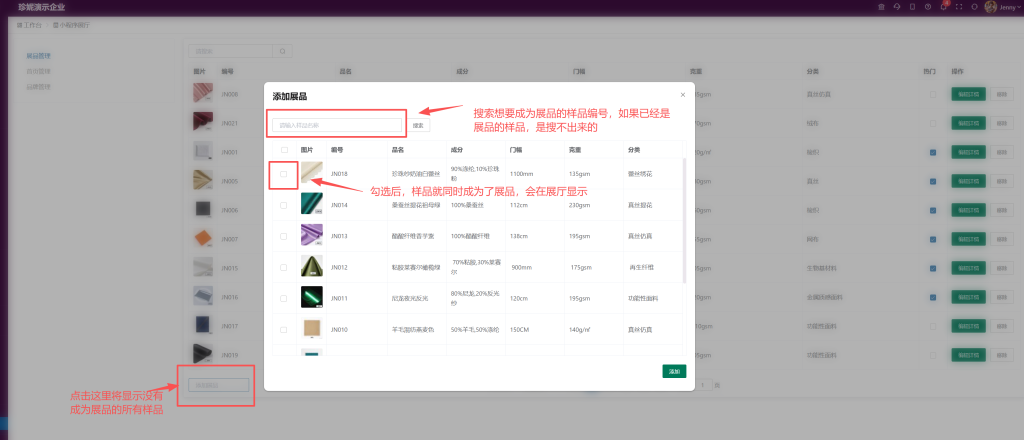
4. Showpiece management
In Sample Management, mark the products you want to display as "showpieces" — they sync to the showroom automatically, with no re-entry needed.
5. Switching templates
Showroom Settings → Showroom Templates — browse the 18 template thumbnails and apply with one click after previewing.
6. Multilingual showroom fields
- Product name / description / category / news and more support multilingual fields
- Languages left blank automatically fall back to Chinese, avoiding empty pages
7. SEO settings
Showroom Settings → SEO Settings:
- Enter your Baidu Webmaster / Google Search Console verification codes
- Enter your Google Analytics / Baidu Tongji tracking ID
- Enter a default description and default keywords
- Submit
sitemap.xml(auto-generated by the platform) to search-engine webmaster platforms
8. Custom subdomain
Showroom Settings → My Showroom — enter the subdomain you want (e.g. yourbrand). After saving, the showroom is accessible at yourbrand.jenny.cn.
Product QR codes
Every product in the showroom comes with its own QR code, identical to the one printed on sample labels:
- Customers scan it → go straight to that product's detail page
- They can add it to the selection cart or start an inquiry
- Submissions after selection sync to the "Customer Selection Order," making it easy for sales reps to follow up
For more on the scan experience, see Buyer Portal Revamp · H5 Scanning.
Related articles
- WeChat Mini-Program Showroom — the same data presented in a Mini-Program
- Buyer Portal Revamp · H5 Scanning — what customers see after scanning
- Sample Management — how to mark a sample as a showpiece
- Quotations, Sample Dispatch Orders & Selection Orders — what documents to send customers after an inquiry
- Categories and Tag Cloud — how to configure the three-level categories